
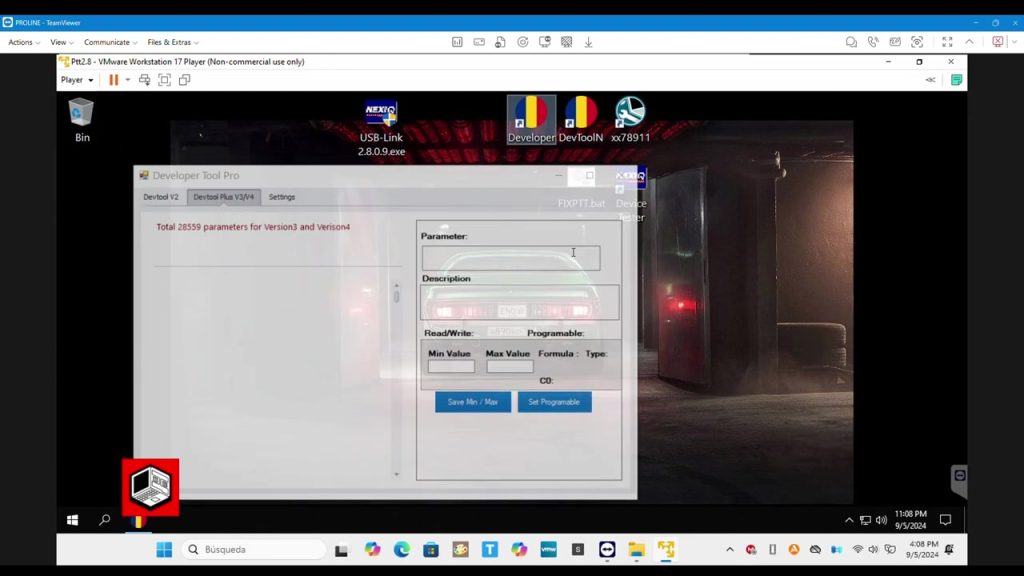
Tech Tool Pro 2.8 و Developer Tool Pro are essential diagnostics packages لـ Volvo Trucks, especially the VHD series. This tutorial walks you عبر changing the chassis ID, البرمجة المعلمات, و reading control‑unit data while avoiding common pitfalls مثل frozen software و unprogrammable المعلمات.
الدروس المستفادة
- كيفية launch Tech Tool Pro 2.8 و Developer Tool Pro correctly.
- كيفية read the current chassis ID من a Volvo VHD ECU.
- كيفية program a new chassis ID بدون triggering red‑text errors.
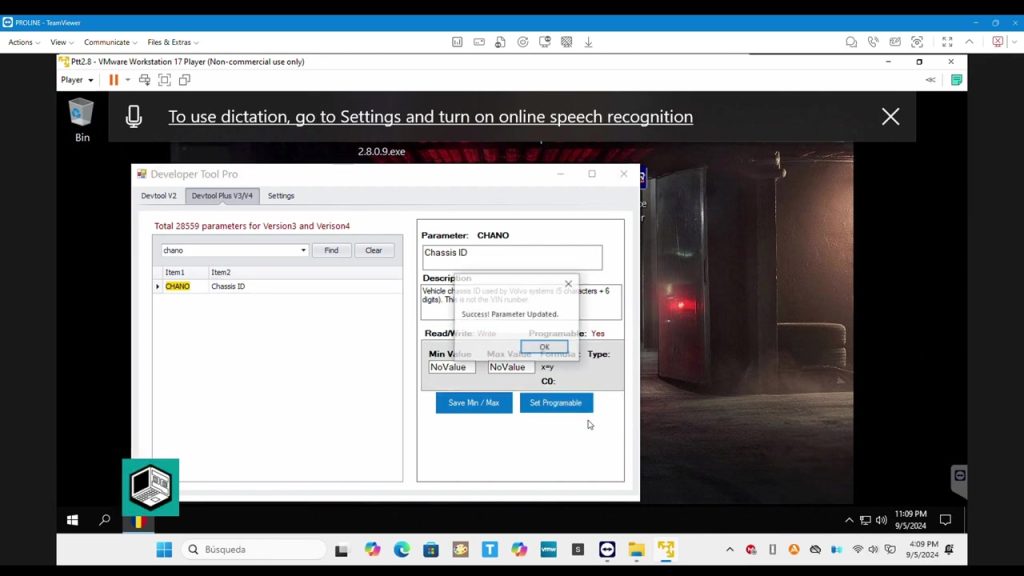
- كيفية modify المركبات المعلمات safely using Developer Tool Pro.
- كيفية prevent software freezes و avoid unwanted Volvo updates.
- كيفية verify that the new ID و المعلمات are stored correctly.
- Best practices لـ restarting virtual المعدات و handling connections.
الخطوة-by-الخطوة Walkthrough
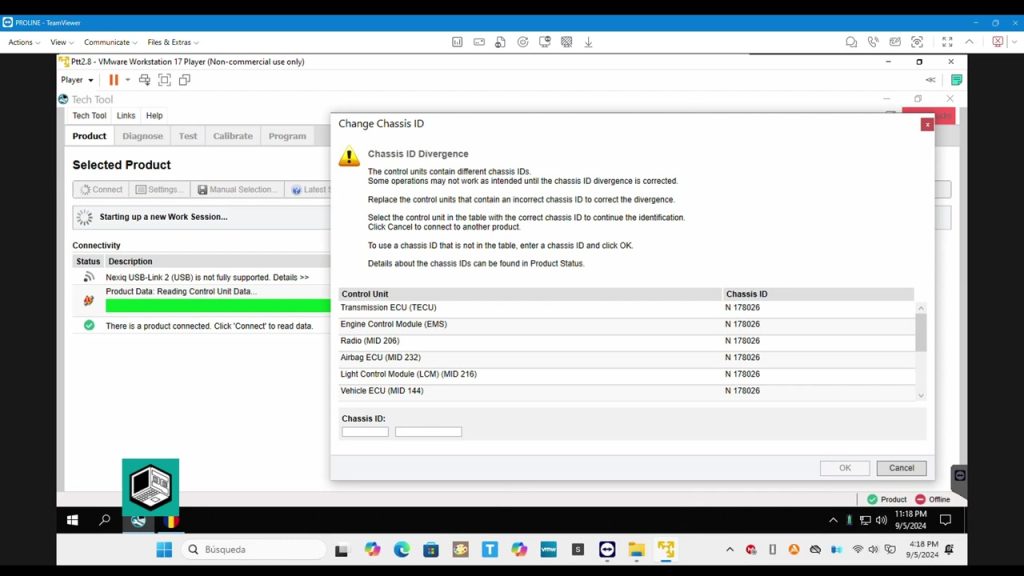
Begin by opening the virtual المعدات that hosts Tech Tool Pro 2.8. قبل أن start, close any running instance of the program; this eliminates residual locks that can cause the “unprogrammable المعلمات” red text. Launch Developer Tool Pro as an administrator – right‑click the shortcut و select “Run as administrator.” This elevated permission مطلوب لـ low‑level ECU communication. Once Developer Tool Pro is open, navigate إلى the “Parameters” tab و set the desired chassis ID value. After confirming the entry, click “Apply” و wait لـ the confirmation message. Do not click “Connect” in Tech Tool Pro yet. Instead, shut down Developer Tool Pro, return إلى the desktop, و restart the virtual المعدات. The restart clears any lingering buffers و ensures that the new المعلمات set is fully committed.
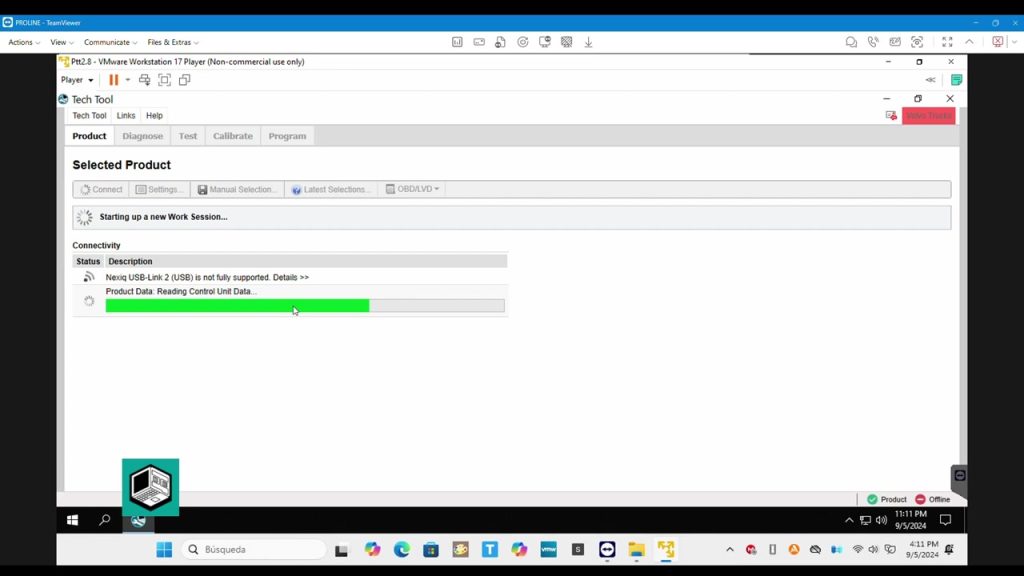
After the VM boots, launch Tech Tool Pro 2.8. The software will automatically attempt إلى detect the ECU; يتيح it a few seconds إلى establish the link. When the “Connected” status appears, open the “Read Data” window و select the chassis ID field. The current ID will be displayed in the grid. Verify that it matches the value you entered earlier. If it لا, repeat the المعلمات entry step, ensuring that you wait at least 30 seconds بعد each change.
Next, open the “Programming” module. Choose “Chassis ID” من the drop‑down list, enter the new ID, و press “Write.” Tech Tool Pro 2.8 will show a progress bar; be patient و avoid rapid clicking, as this can cause the software إلى freeze. Once the write operation completes, a green confirmation will appear.
To double‑check, return إلى the “Read Data” screen و refresh the chassis ID field. The new ID should now be visible. If the field still shows the old value, repeat the write step بعد a full VM restart.
Finally, إلى prevent unwanted Volvo software updates, go إلى the “Settings” menu, locate the “Auto‑Update” option, و disable it. Confirm the change و close the settings window. This step eliminates the risk of the ECU being overwritten مع a factory firmware that would revert your custom ID.
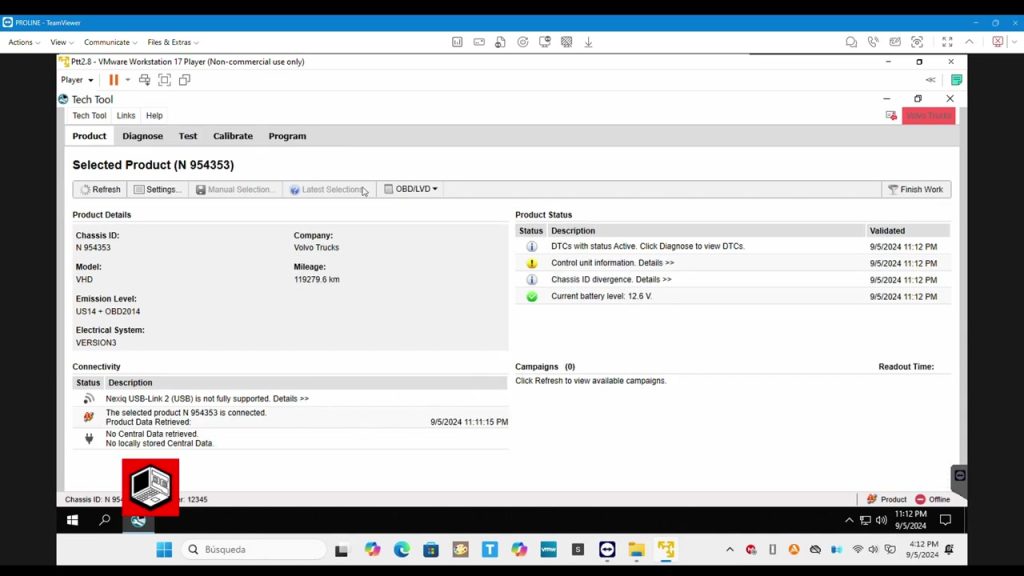
For a كامل diagnostic snapshot, use the “Export Log” feature إلى save a .csv file containing the old و new IDs, timestamps, و any رموز الأخطاء that appeared أثناء the session. Store this log لـ future reference or warranty documentation.
If at any point the software becomes unresponsive, close Tech Tool Pro 2.8, wait ten seconds, و relaunch it. Avoid clicking the “Connect” button immediately بعد launch; let the automatic detection finish first.
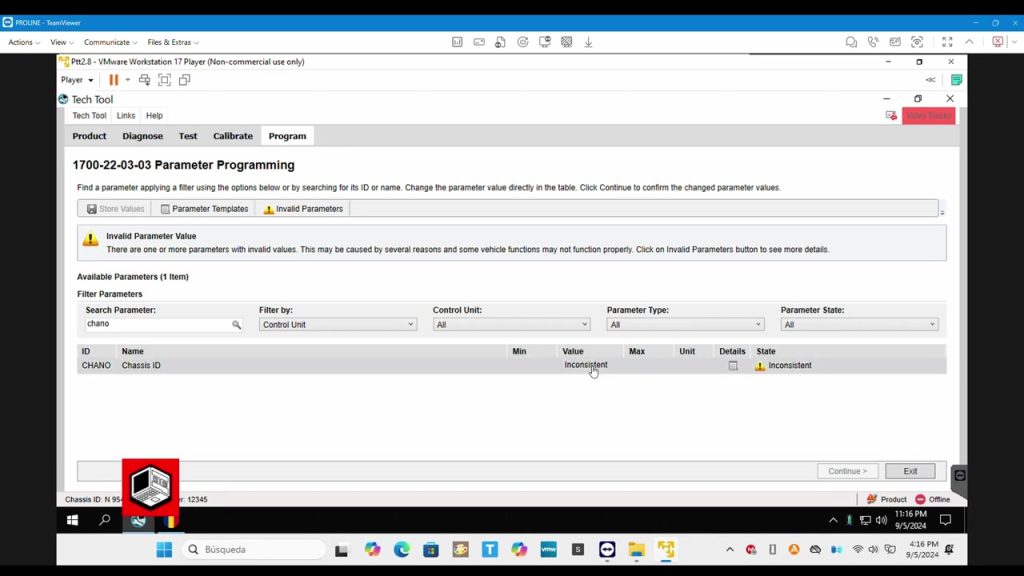
Should you encounter red‑text error messages indicating “unprogrammable المعلمات,” verify that you are running Developer Tool Pro مع administrator rights و that the virtual المعدات has been restarted بعد the last المعلمات change. Often a simple reboot resolves the issue.
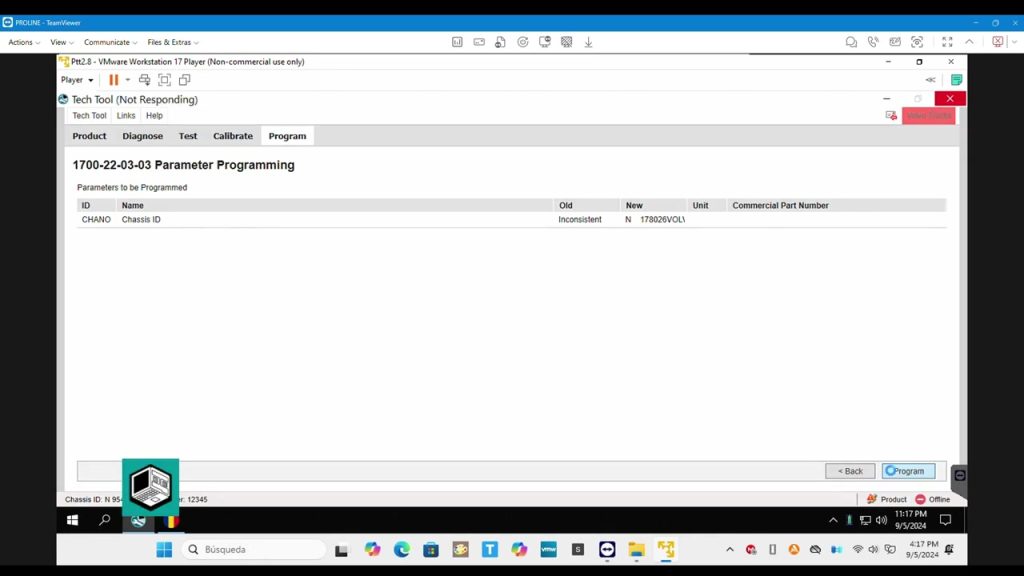
Once all steps are successfully completed, you can safely disconnect the diagnostic cable و power down the المركبات. The chassis ID will now be permanently stored in the ECU, ready لـ fleet tracking or compliance reporting.
الميزات الرئيسية of Tech Tool Pro 2.8, Developer Tool Pro
- Full read/write access إلى Volvo VHD ECUs, including chassis ID و المركبات المعلمات.
- Real‑time data streaming لـ live sensor monitoring و رموز الأعطال analysis.
- Parameter editing مع validation checks إلى prevent illegal values.
- Integrated log export لـ audit trails و service documentation.
- Administrator‑level operations via Developer Tool Pro لـ low‑level ECU البرمجة.
- Customizable UI that يتيح الفنيين إلى hide unused modules و focus on chassis ID work.
و وحدات التحكم الإلكترونية للمركبات المتوافقة
The procedures described apply إلى Volvo Trucks equipped مع the VHD electronic architecture, including but not limited إلى:
- Volvo VHD 4‑cylinder diesel المحركات (model years 2015‑2023).
- Volvo VHD 6‑cylinder diesel المحركات (model years 2016‑2024).
- Associated control units: Engine Control Module (ECM), Transmission Control Module (TCM), و Body Control Module (BCM) that store chassis identification data.
- Vehicles using the standard Volvo diagnostic connector (16‑pin) compatible مع Tech Tool Pro 2.8.
نصائح تمهيدية سريعة:
- Always close Tech Tool Pro قبل opening Developer Tool Pro; this prevents file‑locking conflicts.
- Run Developer Tool Pro as administrator إلى ensure المعلمات changes are written at the hardware level.
- After setting المعلمات in Developer Tool Pro, restart the virtual المعدات قبل launching Tech Tool Pro.
- Do not click “Connect” in Tech Tool Pro immediately; يتيح the auto‑detect routine إلى finish إلى avoid freezing.
- Disable Volvo’s automatic update feature in Tech Tool Pro settings إلى keep your custom chassis ID intact.
Following this workflow guarantees a reliable chassis ID change, minimizes downtime, و keeps your Volvo VHD diagnostics running smoothly.
الأسئلة الشائعة
كيفية make المعلمات programmable?
Use Developer Tool Pro, click ‘Set Programmable’, then restart the virtual المعدات.
Why is Tech Tool slow?
It’s due إلى the program’s optimization, not computer speed.
What إلى do if Tech Tool freezes?
Be patient و avoid clicking excessively.
Should I perform Volvo updates?
No, cancel them إلى avoid issues.
جاهز إلى للاستخدام Tech Tool Pro 2.8, Developer Tool Pro في الخاص بك ورش العمل؟ قم بتنزيله من مباشرة mecaprograms.ma — التسليم الفوري، لا حاجة للاشتراك.