
Welcome إلى CAT ET 2019C — Your First Session
Caterpillar ET 2019C is one of the most powerful OEM أدوات التشخيص available لـ any heavy equipment or truck المحركات. إذا كنت are new إلى CAT ET, هذا الدليل takes you من التركيب إلى your first رموز الأعطال read in under 20 minutes.
Pre-Flight Checklist
- ✅ CAT ET 2019C installed و activated on Windows 10 or 11 (64-bit)
- ✅ CAT Communication Adapter 3 (CA3) or NexIQ USB-Link 2/3 connected via USB
- ✅ CA3 or NexIQ adapter drivers installed قبل launching CAT ET
- ✅ CAT المحركات or equipment مع key-on
الخطوة 1 — Find the Service Connector
On trucks: 9-pin Deutsch connector under the dash, driver side (Kenworth T800, Peterbilt 379 مع CAT C15).
On CAT equipment:
- الحفارات (320, 330, 349): left side cab console panel
- Dozers (D6, D8, D9): right side cab panel near operator seat
- اللوادر ذات العجلات (950–990): inside cab, dash left side
الخطوة 2 — Connect the Adapter
- Plug the CA3 cable في the service connector — push until it clicks
- Plug the USB end في your laptop
- Turn the truck ignition or equipment key إلى ON
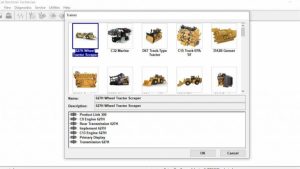
الخطوة 3 — Open CAT ET و Start a Session
- Launch CAT ET 2019C — right-click → Run as Administrator on first use
- Click Connect or New Session
- CAT ET detects the connected ECMs automatically — على CAT excavator you may see 5–8 ECMs (المحركات, hydraulic, transmission, المعدات, etc.)
- The Session Information screen shows: ECM part number, الرقم التسلسلي, flash file part number, software revision
الخطوة 4 — Read Fault Codes
- Left panel → Diagnostics → Fault Codes
- Select which ECM إلى read (Engine ECM first)
- CAT ET displays Active (currently detected) و Logged (historical) faults
- Click any fault لـ full description, freeze frame data, و occurrence count
- مهم: CAT ET also shows Event Codes — these are informational events that are not faults but indicate the المحركات experienced a protection event (overspeed, high coolant temp, etc.)
الخطوة 5 — View the Event Log
The Event Log is one of CAT ET’s most valuable features — it shows every protection event recorded by the ECM since the last event log clear, مع timestamps و المحركات hours.
- Left panel → Diagnostics → Event Log
- Review all logged events by date/hour
- Look لـ: high coolant temperature events, low oil pressure events, overspeed events, VVA pressure events
The event log is the only way إلى تشخيص intermittent faults that occur on the road و لا produce active codes by the time the المعدات reaches the shop.
الخطوة 6 — Live Parameters
- Left panel → Service → Product Status Report or Parameters
- Key المعلمات إلى monitor على CAT C15/C18 المحركات:
- Engine coolant temperature (normal operating: 180–205°F)
- Engine oil pressure (normal: 25–70 PSI at operating temp)
- Fuel delivery pressure (normal: 65–75 PSI at idle)
- Exhaust back pressure (normal: below 3 PSI at idle)
- DPF differential pressure (monitors soot accumulation)
الخطوة 7 — Programmable Parameters (Advanced)
CAT ET 2019C is unique in giving access إلى programmable المعلمات — المحركات protection thresholds, maximum speed settings, PTO التهيئة, idle shutdown timers. These are typically set at the factory but يمكن أن يكون customized لـ the application.
- Left panel → Service → Configuration
- View current programmable المعلمات settings
- Modifying المعلمات يتطلب the CAT factory password لـ protected values — contact your CAT dealer
Beginner Mistakes إلى Avoid
- ❌ Using an ELM327 or passenger car OBD-II adapter — يتطلب RP1210 or CA3 adapter
- ❌ Ignoring Event Codes — they record real incidents even عند no active رموز الأعطال is present
- ❌ Interrupting an ECM البرمجة session — this can corrupt the ECM
- ❌ Running CAT ET بدون Administrator privileges
- ❌ Attempting إلى modify protected المعلمات بدون the CAT factory password