
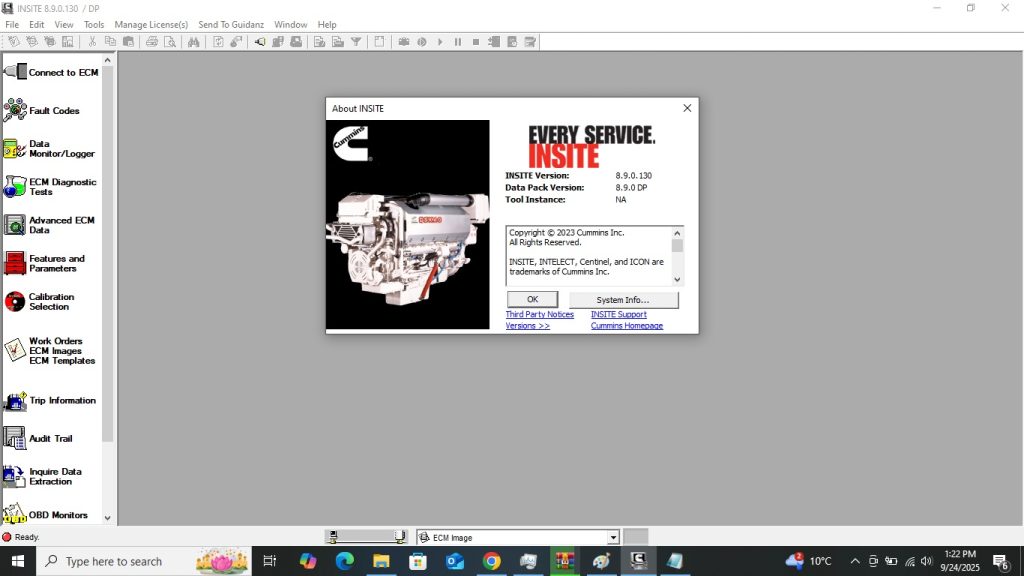
Running Cummins INSITE 8.9 on VMware
Cummins INSITE 8.9 is Windows-only. On macOS or Linux المعدات, a VMware virtual المعدات مع Windows guest is the standard workaround used by fleet shops و independent الفنيين. يغطي هذا الدليل the كامل setup including USB passthrough لـ the Cummins INLINE 7 adapter — required لـ ECM البرمجة.
Critical note لـ ECM البرمجة in a VM: USB passthrough introduces a small latency overhead. While fault reading و المعلمات monitoring work reliably in a VM, ECM المعايرة downloads should ideally be done على native Windows المعدات عند possible. إذا كنت must program via VM, ensure USB 3.1 controller is selected و the adapter is set إلى auto-connect.
What You Need
- VMware Workstation Pro 17 (Windows/Linux host) or VMware Fusion 13 (Intel Mac)
- Windows 10 or 11 ISO (64-bit)
- Cummins INSITE 8.9 installer من mecaprograms.ma
- Cummins INLINE 7 adapter (لـ ECM البرمجة) or NexIQ USB-Link 2/3 (لـ رموز الأعطال only)
- 50+ GB free disk space لـ the VM
- Stable internet (لـ INSITE license activation و المعايرة downloads)
الخطوة 1 — Create the Windows VM
- VMware Workstation Pro 17 → File → New Virtual Machine → Typical
- Select Windows 10/11 ISO → set VM name:
INSITE-8.9 - Set disk: 80 GB minimum, single file
- Customize Hardware: RAM 8 GB, 2 CPU cores, USB Controller → USB 3.1, Network → NAT
- Power on → كامل Windows التركيب → install VMware Tools → restart
الخطوة 2 — INLINE 7 USB Passthrough
- Plug the Cummins INLINE 7 في your host المعدات’s USB 3.0 port
- VMware → VM menu → Removable Devices → find “Cummins INLINE 7” → click “Connect (Disconnect من Host)”
- The INLINE 7 should now appear in Windows Device Manager inside the VM
- Enable auto-connect: VM Settings → USB Controller → “Automatically connect new USB devices”
الخطوة 3 — Install Cummins INLINE Drivers
- Inside the VM, run the Cummins INLINE 7 driver installer (included مع the INLINE 7, or downloadable من Cummins)
- Run as Administrator → كامل التركيب → restart VM
- Verify in Device Manager: INLINE 7 appears under “Cummins” مع no error flags
الخطوة 4 — Install و Activate INSITE 8.9
- Copy the INSITE 8.9 installer في the VM (drag-و-drop مع VMware Tools installed)
- Right-click → Run as Administrator → كامل التركيب
- Disable Windows Defender temporarily إلى prevent blocking of .NET و driver المكونات
- Launch INSITE 8.9 → enter license key → activate (NAT networking يوفر internet)
- Re-enable Windows Defender, add INSITE folder إلى exclusions
الخطوة 5 — Connect إلى a Cummins Engine
- With VM running, connect INLINE 7 إلى the truck’s 9-pin Deutsch diagnostic port
- Confirm INLINE 7 is connected إلى the VM, not the host (check VM → Removable Devices)
- Turn truck ignition إلى ON
- Open INSITE 8.9 → New Session → INSITE auto-reads VIN, المحركات serial, و installed المعايرة
VMware Troubleshooting — INSITE-Specific
| Problem | Cause | Fix |
|---|---|---|
| INLINE 7 not detected in VM | USB passthrough not configured | VM → Removable Devices → manually connect INLINE 7 |
| Calibration download fails mid-flash | Internet dropped or USB passthrough interrupted | Use wired ethernet in VM settings; check USB controller is set إلى USB 3.1 |
| INSITE license activation fails | VM using Host-only network | Change VM network إلى NAT in VM Settings → Network Adapter |
| ECM not responding | INLINE 7 connected إلى host, not VM | Reconnect via VM → Removable Devices |
| Slow المعلمات updates | VM CPU/RAM too low | Increase VM RAM إلى 8 GB; allocate 2+ CPU cores |