
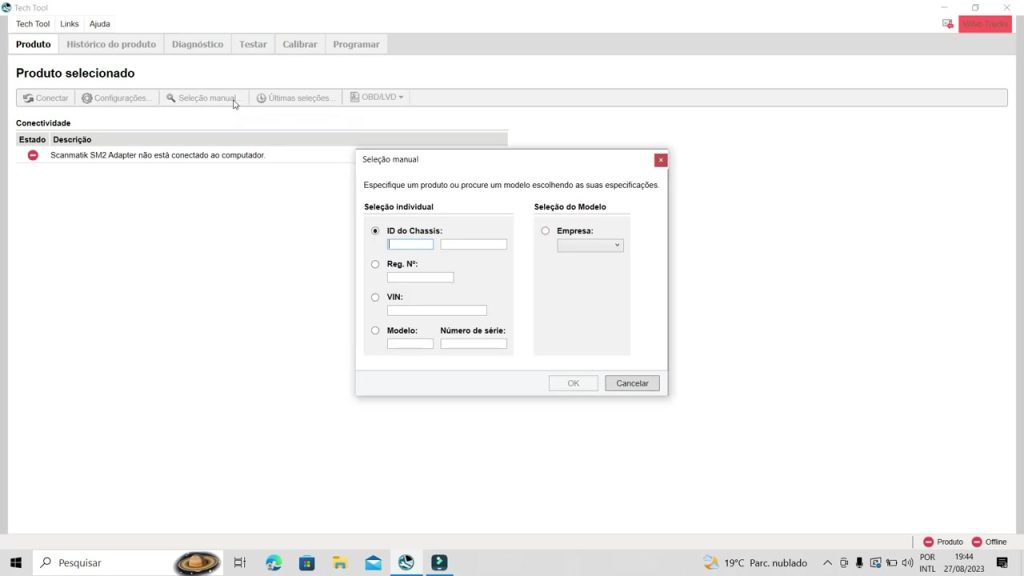
Tech Tool 2.8 is Volvo’s الرسمي offline منصة التشخيص that lets الفنيين troubleshoot FH, FM, و related models بدون a live connection إلى the truck. This tutorial walks you عبر the simulated mode, manual chassis selection, و symptom‑based تشخيص, so you can master the software قبل working on the shop floor.
What You Will Learn
- كيفية launch Tech Tool 2.8 in offline simulated mode
- كيفية manually input a chassis ID و select the correct electrical الأنظمة version
- كيفية choose the المركبات model (FH, FM) و configure the diagnostic المعلمات
- كيفية navigate the symptom‑based تشخيص tree لـ المحركات, fuel, air‑intake و cooling issues
- كيفية read المكونات diagrams و understand the relationship بين ECUs مثل VMCU, DDM و CCM
- كيفية run و interpret each test instruction, including key position, fuel level و exhaust gas pressure regulator checks
- كيفية resolve common warning messages و connection errors in Tech Tool 2.8
الخطوة-by-الخطوة Walkthrough
Start Tech Tool 2.8 و select the Offline Simulated Mode من the main screen. This mode disables any live communication و loads a virtual المركبات environment that mimics the real‑world data structures.
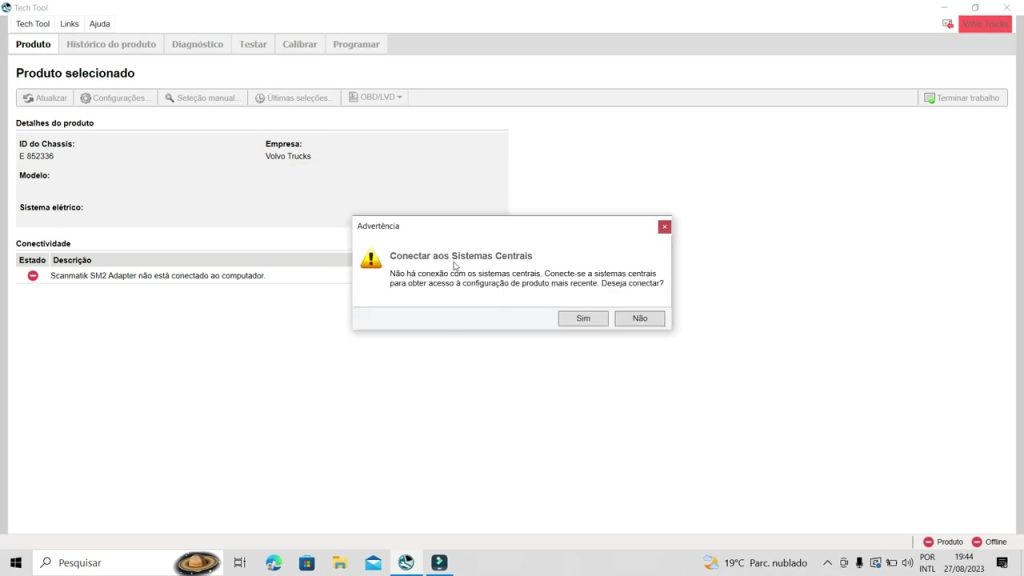
Once in simulated mode, click the Manual Vehicle Selection button و enter the chassis identification number (e.g., YV2R4xxxxx). The software will automatically suggest the appropriate electrical الأنظمة version; if it لا, choose VERSÃO2 or VERSÃO4 based on the model year و المحركات type.
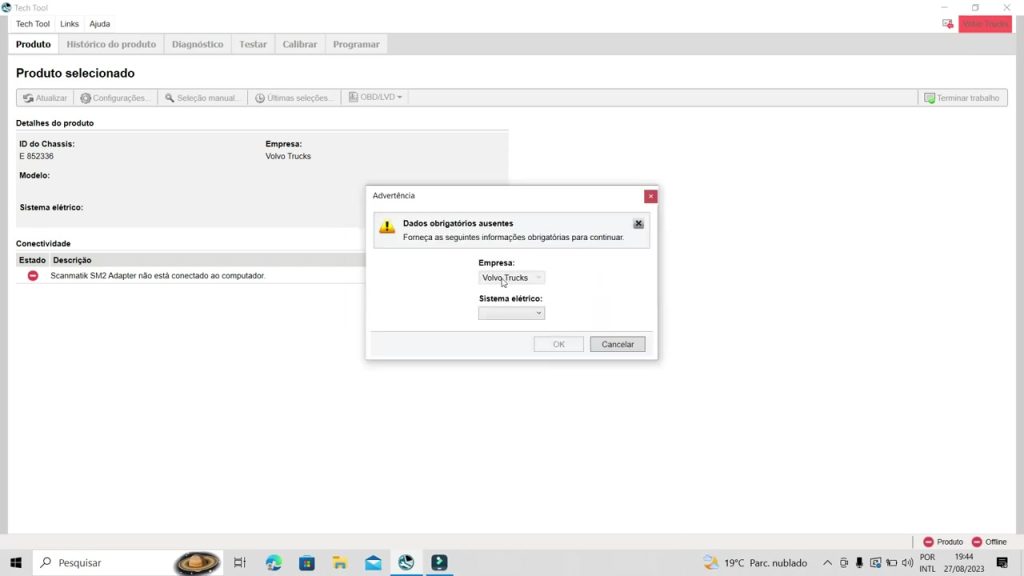
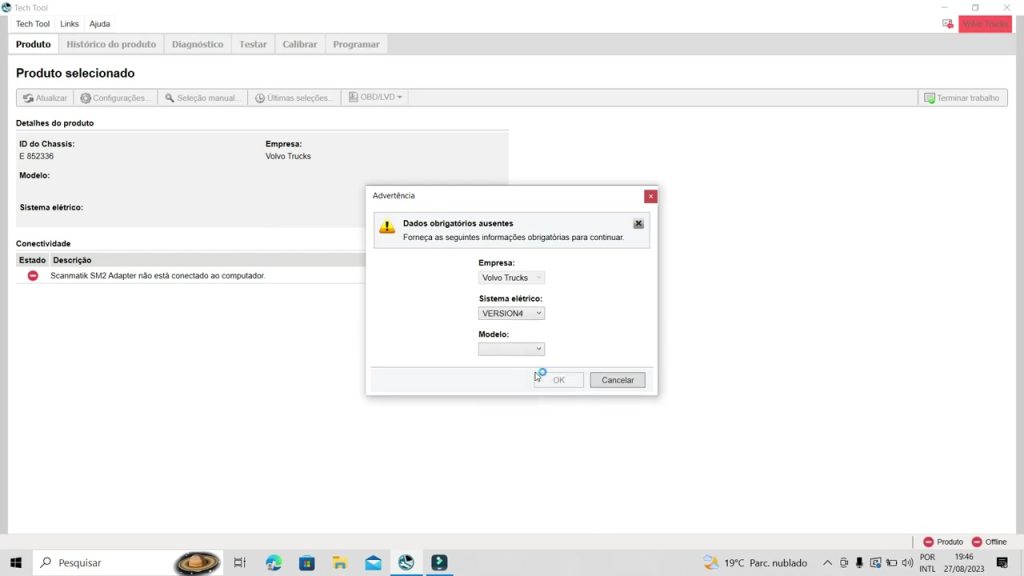
Next, pick the المركبات model. For a standard Volvo FH4, select FH; لـ a Volvo FM4, choose FM. The selection determines which ECUs appear in the diagnostic tree. Confirm your choices و press OK إلى load the simulated المركبات التهيئة.
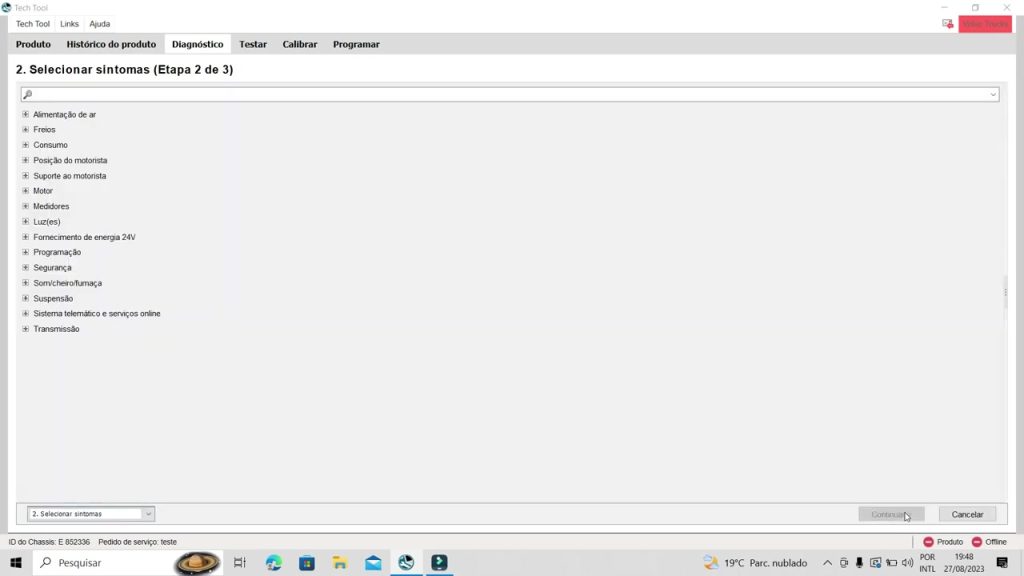
The main dashboard now displays a list of symptom categories. Begin مع Motor إلى تشخيص المحركات‑related faults, then explore Consumo, Alimentação de ar, و Arrefecimento do motor لـ fuel consumption, air‑intake, و cooling issues respectively. Click a symptom إلى expand the test list; each test is linked إلى a specific ECU diagram. على سبيل المثال, selecting the “Fuel level sensor” test opens the VMCU diagram, showing the sensor’s wiring و reference points.
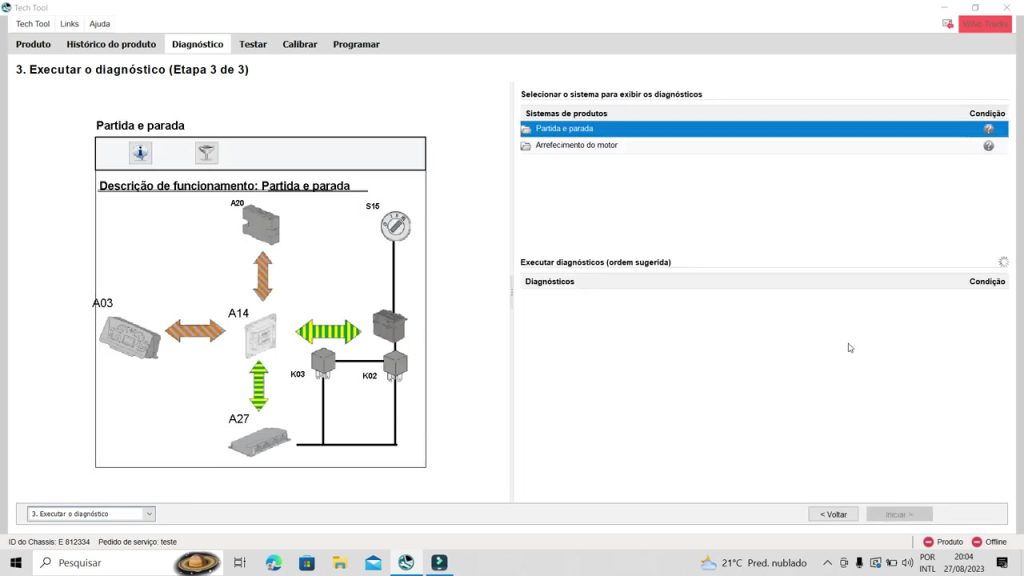
عندما open a test, Tech Tool presents a step‑by‑step instruction panel. Follow the illustrated steps: set the key إلى the required position, verify the fuel level, introduce air في the fuel الأنظمة, or check the exhaust gas pressure regulator. Each instruction is accompanied by a schematic that highlights the exact connector pins و test points. Use the Start Test button إلى simulate the measurement; the software will generate a pass/fail result based on the selected electrical version.
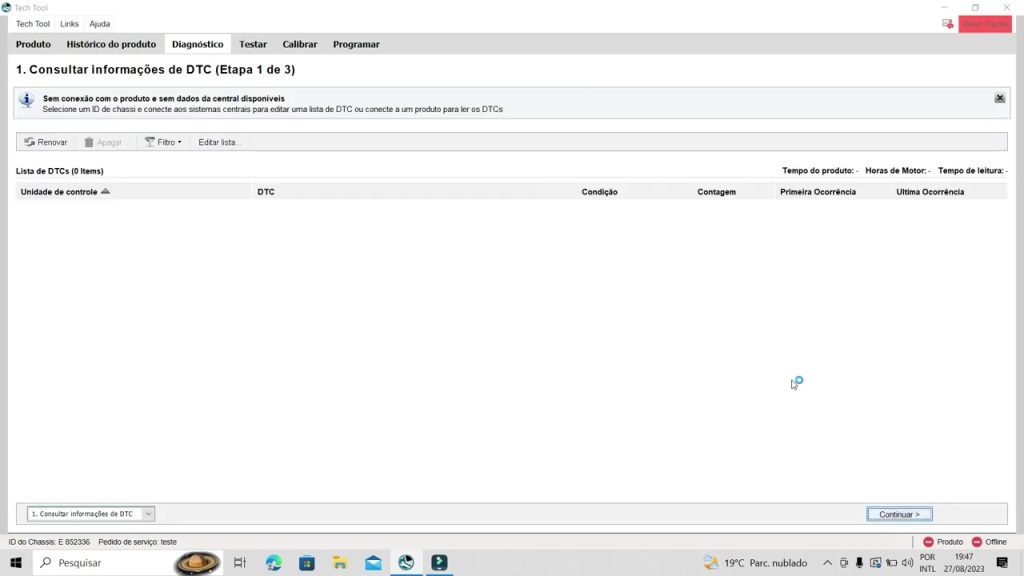
إذا كنت connect a real truck later, the same screens will display live رموز الأعطال retrieved من the ECUs. In the simulated environment, Tech Tool shows placeholder codes إلى illustrate how they would appear. Should any warning appear—مثل “Conectar aos Sistemas Centrais” or “Dados obrigatórios ausentes”—review the التهيئة steps, correct the electrical version, و re‑run the test.
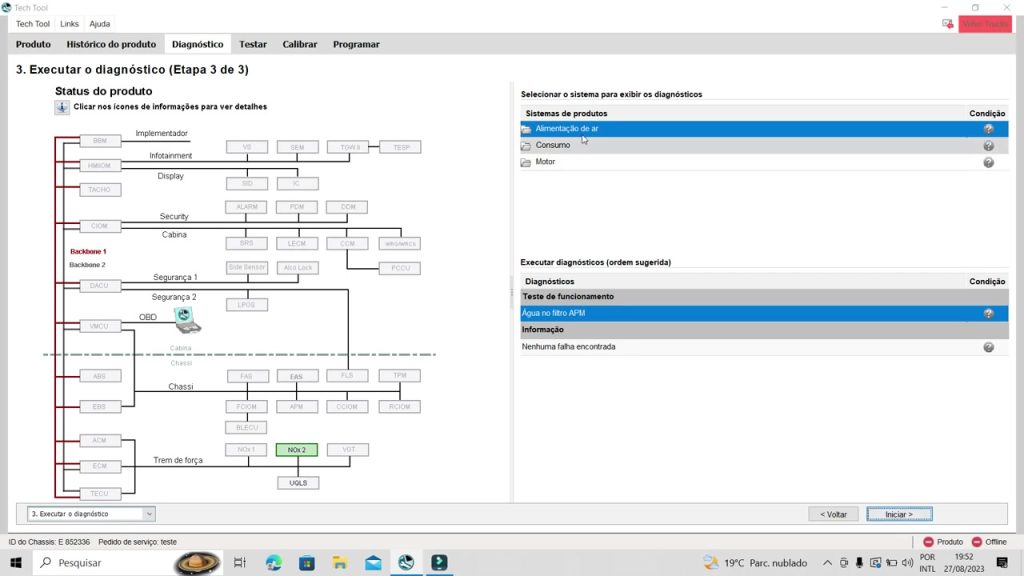
For advanced استكشاف الأخطاء وإصلاحها, open the Component Diagrams tab. Here you can view the backbone architecture, including DDM, PDM, CCM, SRS, LCM, VECU, K2, K3 و S15 modules. Hover over any node إلى see its diagnostic status, و double‑click إلى jump directly إلى the related test list. This visual map is invaluable لـ pinpointing cross‑ECU interactions, especially in complex cooling‑الأنظمة faults.
Finally, بعد completing all required tests, click Finish إلى close the session. Tech Tool will prompt you إلى save a diagnostic report; choose a descriptive filename و store it on your workstation لـ later reference. Remember إلى close the Vcads (Tech Tool) window only بعد the report is saved إلى avoid data loss.
الميزات الرئيسية of Tech Tool
- Offline simulated mode that replicates real‑time المركبات data بدون a physical connection
- Manual chassis ID entry لـ precise ECU mapping
- Electrical الأنظمة version selection (VERSÃO2, VERSÃO4) إلى match hardware revisions
- Symptom‑driven تشخيص tree covering المحركات, fuel, air‑intake و cooling الأنظمة
- Interactive المكونات diagrams مع direct links إلى test procedures
- Detailed test instructions مع visual schematics لـ key position, fuel level, و exhaust gas regulator checks
- Fault code display و report generation لـ both simulated و live sessions
Compatible Vehicles و ECUs
Tech Tool 2.8 يدعم ما يلي Volvo truck families و their associated control units: FH4, D12A, D13A, D13C, VM, FM4. Key ECUs يتضمن Backbone, VMCU, DDM, PDM, CCM, SRS, LCM, VECU, K2, K3 و S15. The software also accommodates future model updates عبر its electrical الأنظمة version selector.
Pro Tips
- Use the offline simulated mode at home إلى become familiar مع the interface قبل connecting إلى an actual truck.
- Always match the electrical الأنظمة version و المركبات model إلى the chassis number; an incorrect setting will show wrong diagrams و test results.
- إذا كنت are unsure which version إلى select, choose the first (most common) option—Tech Tool will still يوفر a functional baseline.
- Complete و save the diagnostic report قبل closing Vcads; unsaved data is lost عند the application exits.
- Be aware that Tech Tool runs on Java و may feel slower than Scania’s native software; patience أثناء loading screens prevents premature error messages.
By mastering Tech Tool 2.8’s offline capabilities, you can تشخيص Volvo trucks efficiently, reduce on‑site testing time, و deliver accurate service reports every time.
الأسئلة الشائعة
Why does Tech Tool ask so many questions عند working offline?
It needs إلى be configured correctly إلى display the right tests و المكونات positions, as it cannot download this information من central الأنظمة.
Can I get المكونات descriptions or detailed information بدون an online connection?
No, you need a connection إلى central الأنظمة (or an updated offline Impact copy) لـ detailed descriptions.
Why is Tech Tool slow?
The application is partly made in Java, which can lead إلى slower performance in large programs.
Ready إلى use Tech Tool in your ورش العمل? Download it directly من mecaprograms.ma — instant delivery, no subscription needed.