
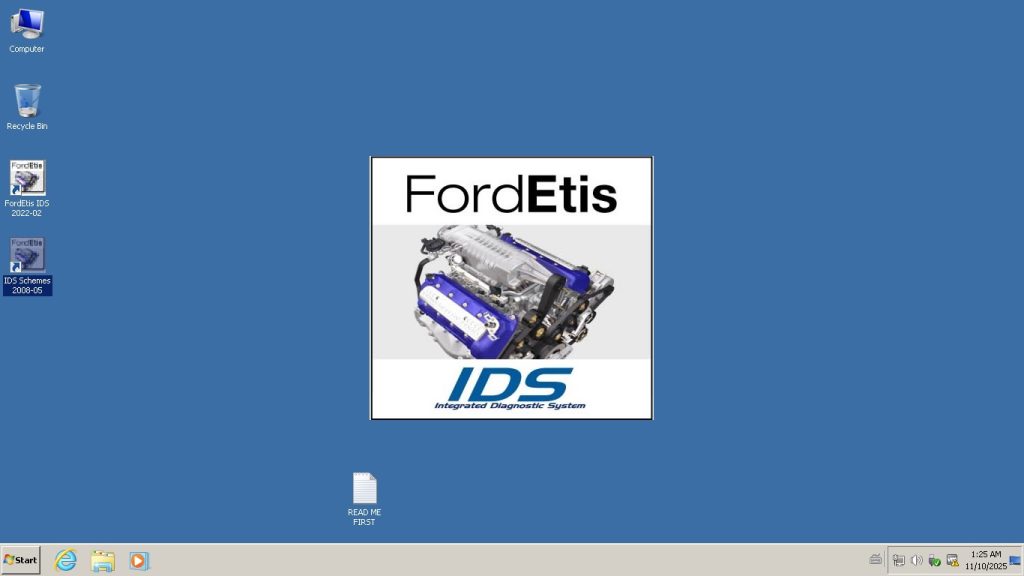
Running Ford ETIS IDS in VMware is the most reliable way إلى use the offline version على modern Windows 10 or Windows 11 PC. يرشدك هذا الدليل خلال the كامل setup process.
الخطوة 1: Install VMware Workstation Player
VMware Workstation Player is the free virtualization software needed إلى run the Ford ETIS IDS image. Download و install the latest version من the VMware website. During التركيب, accept all defaults و restart your PC if prompted.
الخطوة 2: Enable Virtualization in BIOS
Before VMware can run, CPU virtualization يجب أن يكون enabled in your PC BIOS:
- Restart your PC و press Del, F2, or F10 أثناء boot إلى enter BIOS
- Find “CPU Configuration” or “Advanced” settings
- Enable “Intel VT-x” (Intel CPUs) or “AMD-V / SVM” (AMD CPUs)
- Save و exit BIOS (F10)
الخطوة 3: Open the Ford ETIS IDS VMware Image
- Extract the downloaded Ford ETIS IDS VMware archive
- Open VMware Workstation Player
- Click “Open a Virtual Machine”
- Navigate إلى the extracted folder و select the .vmx or .ovf file
- Click “Play virtual المعدات” إلى start
الخطوة 4: Configure RAM و CPU in VMware
For optimal performance, adjust the VM resources قبل starting:
- Right-click the VM → Edit Virtual Machine Settings
- Set RAM إلى 4096 MB (4GB) minimum — 6144 MB (6GB) recommended
- Set CPU cores إلى 2 or 4 if your host PC has enough cores
الخطوة 5: Connect Your J2534 or VCM II Interface
To connect your المركبات interface إلى the virtual المعدات:
- Plug your J2534 adapter or VCM II في a USB port on your host PC
- In VMware, go إلى Player → Removable Devices → find your adapter
- Click “Connect (Disconnect من host)” إلى pass the USB device إلى the VM
- Windows inside the VM will detect و install the adapter driver
- Open Ford IDS inside the VM و configure the communication port
Common VMware Setup Issues
- VM won’t start: Enable virtualization in BIOS (VT-x or AMD-V)
- USB adapter not detected: Use Player → Removable Devices إلى connect the USB إلى the VM
- Slow performance: Allocate more RAM, move VM إلى SSD, disable real-time antivirus on VM folder
- Screen resolution issues: Install VMware Tools inside the virtual المعدات