
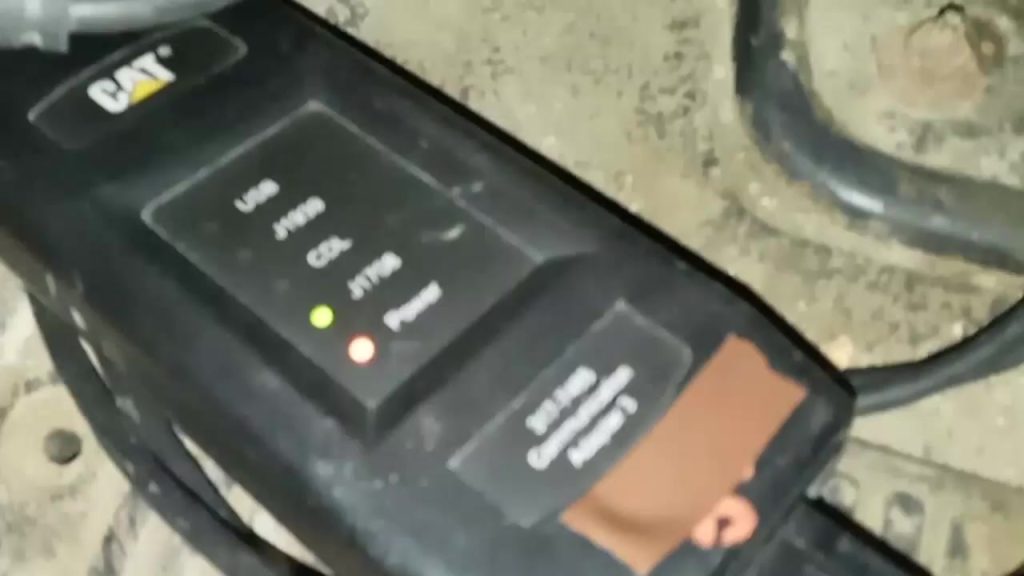
The Caterpillar Electronic Technician (ET) is the industry‑standard حزمة التشخيص لـ Cat المحركات و equipment. This tutorial walks الفنيين عبر connecting إلى the ECM of C13, C15 و 3208 المحركات, reading live data, و performing advanced tests using Caterpillar Electronic Technician (ET) إلى keep trucks on the road faster.
What You Will Learn
- كيفية establish a reliable connection بين the Cat Comm Adapter 3 و the المحركات ECM.
- كيفية navigate the main ET interface إلى view المركبات ID, المحركات الرقم التسلسلي و module codes.
- كيفية read active و logged diagnostic codes, events, و sensor history.
- كيفية customize the status screen و capture min/max sensor values.
- كيفية access و modify التهيئة المعلمات مثل المحركات rating و cruise‑control settings.
- كيفية run built‑in diagnostic tests, including injector solenoid, valve actuator, و cylinder cut‑out tests.
- كيفية use trainer mode لـ safe practice بدون affecting a live المحركات.
الخطوة-by-الخطوة Walkthrough
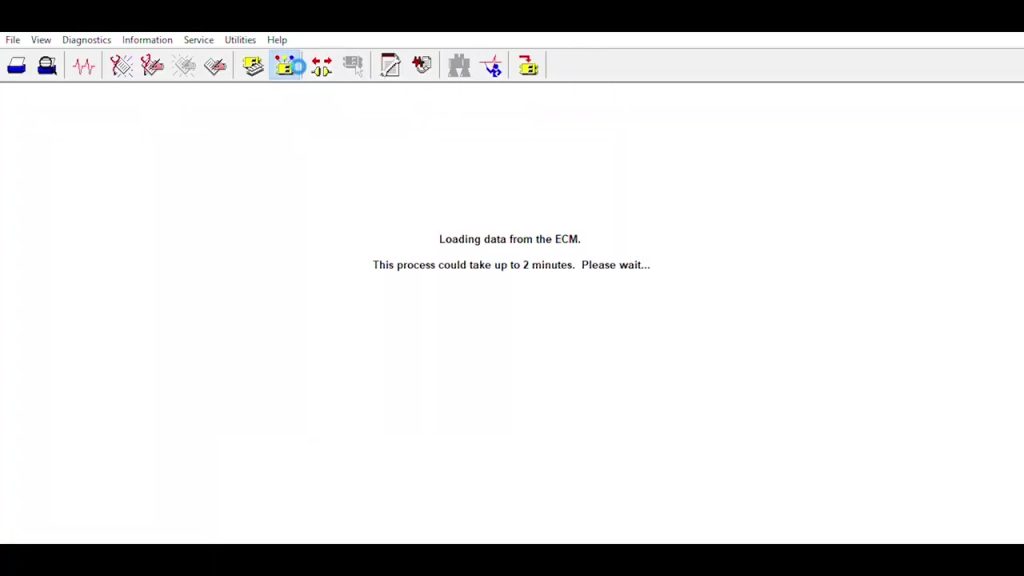
Begin by launching Caterpillar Electronic Technician (ET) على Windows PC that has the dealer license installed. Connect the Cat Comm Adapter 3 إلى the laptop’s USB port و verify that the power LED on the adapter is illuminated. Plug the adapter’s 9‑pin cable في the ECM’s diagnostic port on the C13 (VIN KCB42545) or C15 (VIN SDP99999) المحركات. Once the physical link is established, click the Connect button in ET; the software will automatically detect the J1939 communication protocol و display a green “Connected” status.
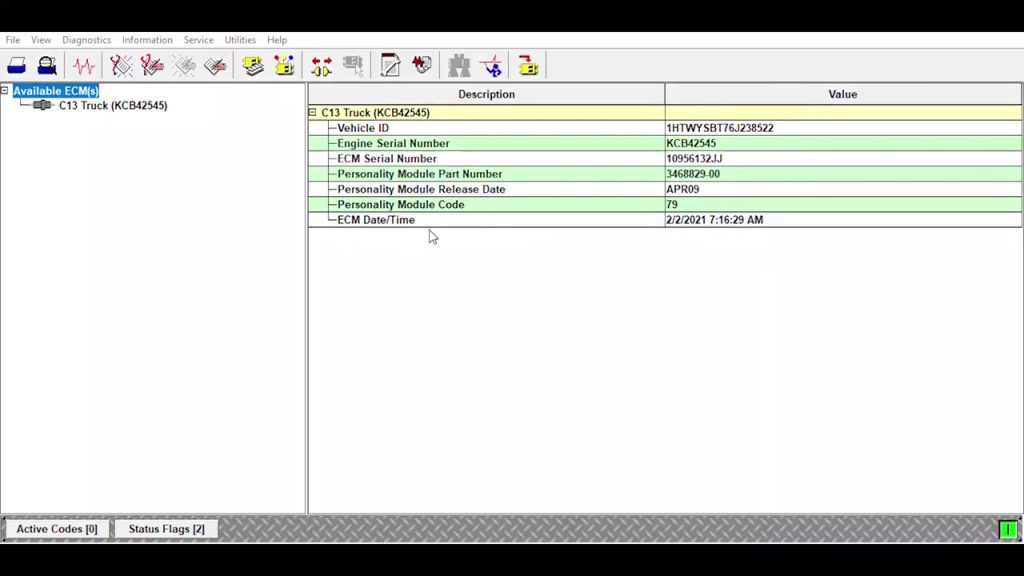
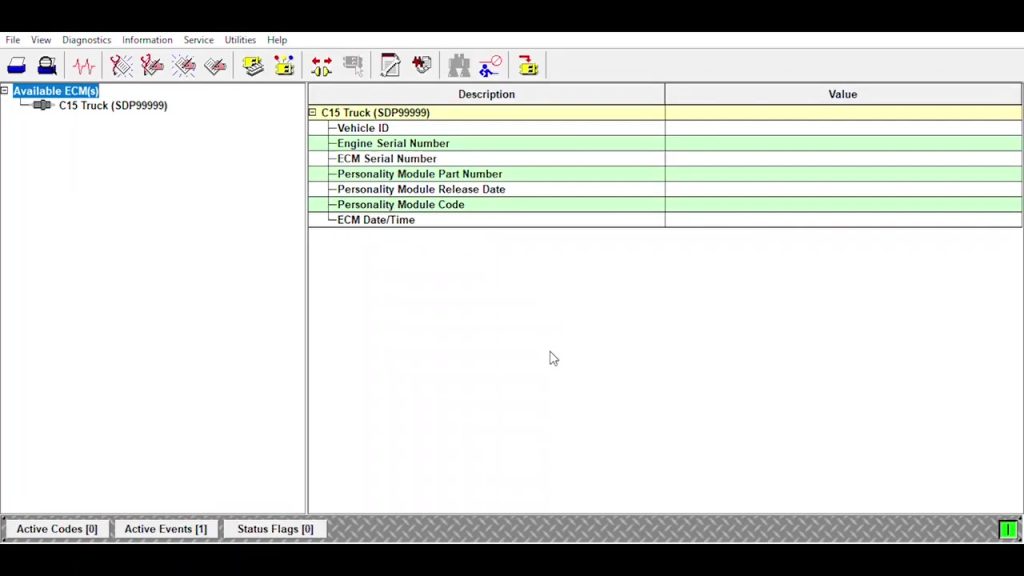
The first screen you will see is the **ECM نظرة عامة**. It lists the Vehicle ID, Engine Serial Number, Personality Module Part Number, Release Date, Module Code, و the ECM’s internal date/time. Take note of the date/time values; they يمكن أن يكون corrected later if they drift.
Next, navigate إلى the **Diagnostic Codes** tab. Here you can toggle بين **Active Codes** و **Logged Codes**. Active codes are flashing red و indicate current faults, while logged codes are stored in the ECM’s history buffer. Use the Export button إلى save a CSV file لـ later analysis.
Switch إلى the **Events** view إلى see **Active Events** و **Logged Events**. Events يوفر context مثل “Engine Over‑speed” or “Low Oil Pressure” و are timestamped, which helps pinpoint عند a fault occurred.
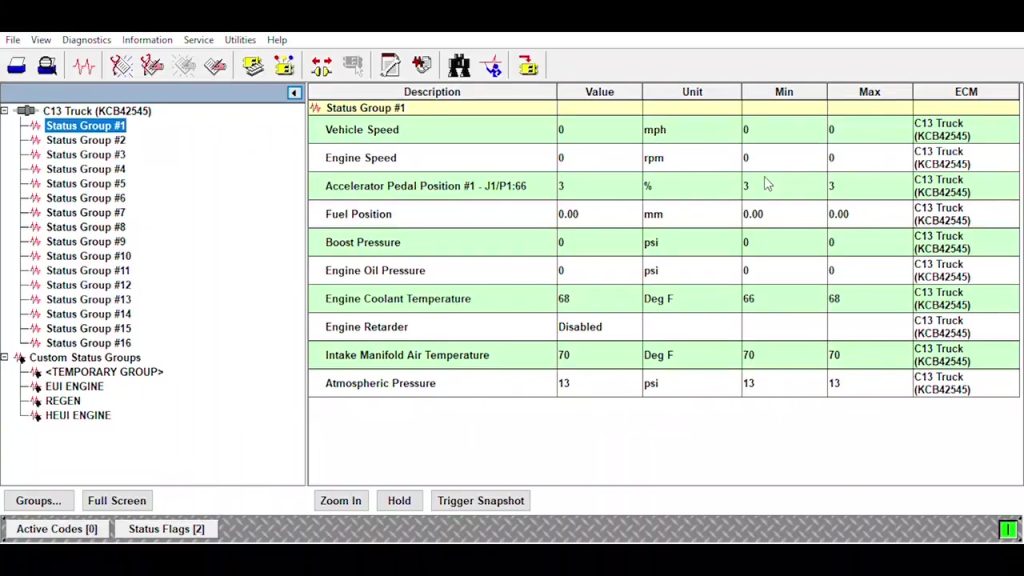
Open the **Status** screen إلى monitor live sensor readings. The default group shows المحركات speed, coolant temperature, oil pressure, و fuel rate. Click the Customize button إلى create a new group that يتضمن additional inputs like PTO speed or exhaust gas temperature. While staying on the status screen, ET continuously records the minimum و maximum values لـ each sensor; these extrema remain visible even بعد you leave the screen, allowing quick trend spotting.
To adjust التهيئة المعلمات, select **Parameters** من the main menu. Categories يتضمن Engine Rating, Vehicle Speed, Cruise Control, Idle, PTO, Engine/Gear, Timer, Smart Idle, Engine Monitoring, Maintenance, Trip, Driver Reward, Input/Output Selections, Passwords, Data Link, و System Settings. على سبيل المثال, under **Engine Rating** you can change the rated horsepower or torque limits, but remember the pro tip حول not altering FLS, FTS, or Personality Module Code unless you are a dealer performing a dyno test.
Changing the ECM date/time is straightforward: go إلى **ECM Settings → Date/Time**, adjust the fields, و click Apply**. This is useful عند استكشاف الأخطاء وإصلاحها time‑related events or synchronizing data logs across multiple المعدات.
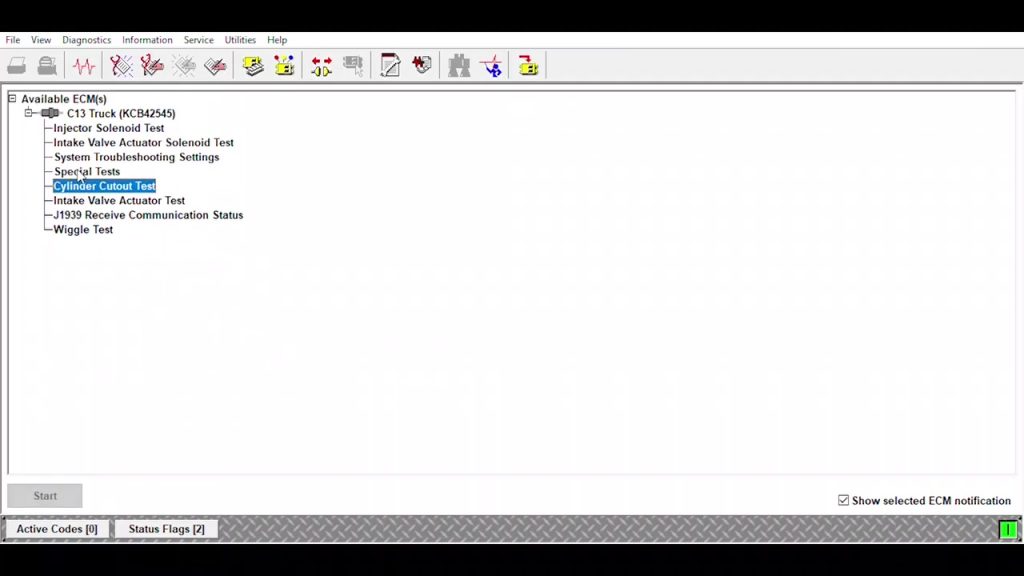
The **Diagnostic Tests** menu houses a suite of المحركات‑specific tests. Start مع the **Injector Solenoid Test** إلى verify each injector’s pulse width و response time. Follow مع the **Intake Valve Actuator Solenoid Test** إلى ensure proper valve timing. The **System Troubleshooting Settings** يتيح you إلى enable or disable specific sensors لـ isolated testing. Advanced options مثل **Special Tests**, **Cylinder Cutout Test**, و **Wiggle Test** are available لـ in‑depth analysis of individual cylinders or actuator function.
For communication verification, run the **J1939 Receive Communication Status** test. إذا كنت encounter the “J1939 Device Not Responding” error, double‑check the adapter’s power LED, confirm the correct cable orientation, و verify that the المحركات’s J1939 network is powered.
The **Engine Air System Verification Test** checks لـ leaks, pressure drops, و correct sensor operation in the intake manifold. Use the **ARD Ignition Test** إلى validate the auxiliary relay driver circuit, especially بعد recent wiring work.
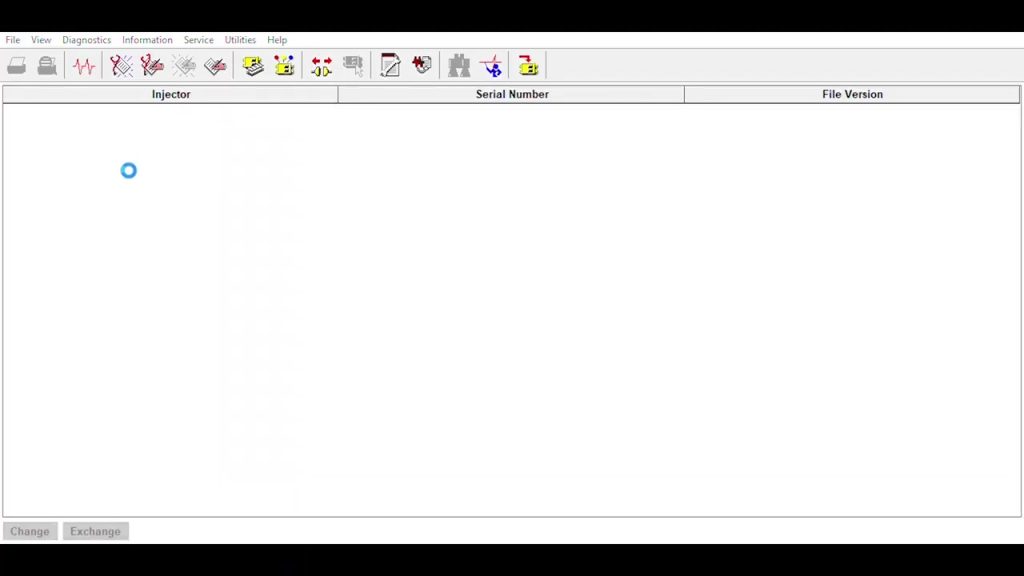
When calibrating fuel delivery, the **Injector Trim Calibration** routine lets you fine‑tune each injector’s fuel trim based on live load و speed data. Follow the on‑screen prompts, و ET will write the new trim values directly إلى the ECM.
إذا كنت are new إلى ET or need a safe environment لـ training, enable **Trainer Mode** من the **File → Options** menu. Trainer mode simulates المحركات responses بدون sending commands إلى the actual hardware, preventing accidental damage أثناء practice runs.
Finally, بعد completing all tests و المعلمات changes, click **Save Configuration** إلى write the updates إلى the ECM. Disconnect the Comm Adapter, power down the المحركات, و perform a brief road test إلى confirm that all الأنظمة operate within normal المعلمات.
Review the **ملخص Report** generated by ET; it consolidates code listings, test results, و المعلمات changes في a single PDF that يمكن أن يكون attached إلى service orders.
Close Caterpillar Electronic Technician (ET) و archive the session logs لـ future reference.
الميزات الرئيسية of Caterpillar Electronic Technician (ET)
- Full J1939 و J1708 communication يدعم لـ modern Cat المحركات.
- Real‑time sensor monitoring مع automatic min/max capture.
- Comprehensive code library covering active, logged, و historical faults.
- Extensive المعلمات editing لـ المحركات rating, cruise control, PTO, و more.
- Built‑in diagnostic test suite including injector, valve actuator, و cylinder cutout tests.
- Trainer mode لـ risk‑free learning و skill development.
Compatible Vehicles و ECUs
Caterpillar Electronic Technician (ET) works مع ما يلي المحركات و their associated ECMs: C13 (VIN KCB42545), C15 (VIN SDP99999), و 3208 series المحركات. The software communicates via the standard 9‑pin J1939 connector و يدعم both dealer‑level و field‑service licenses.
Pro Tips
- Always use a Cat Comm Adapter 3; its dedicated power LED confirms a healthy link قبل launching ET.
- Newer Cat equipment primarily uses J1939; older models may يتطلب J1708 – select the correct protocol in the connection dialog.
- The status screen retains minimum و maximum sensor values as long as you remain on the screen, making it ideal لـ quick trend analysis.
- Avoid modifying FLS, FTS, or the Personality Module Code unless you are performing a calibrated power‑dyno test at a dealer facility.
- Leverage trainer mode إلى rehearse complex test sequences بدون risking المحركات damage.
Mastering Caterpillar Electronic Technician (ET) empowers الفنيين إلى تشخيص, calibrate, و maintain Cat المحركات efficiently, reducing downtime و improving fleet reliability.
الأسئلة الشائعة
What is Cat ET?
Cat ET is Caterpillar Electronic Technician software used by الفنيين و customers إلى communicate مع their المحركات or equipment, view codes, sensor readings, و perform diagnostic tests.
Can anyone download ET?
Yes, anyone can download the ET software, but it يتطلب a license إلى function. مختلفًا licenses determine the version of ET (e.g., dealer, customer, truck-only, military).
What hardware is needed لـ ET?
ET يتطلب a Comm Adapter, مثل the Cat Comm Adapter 3 or Nexiq products, و appropriate adapter cables (OBD2, 9-pin black, 9-pin green, 6-pin) إلى connect إلى the المركبات’s diagnostic port.
What are FLS و FTS?
FLS (Fuel Limit Setting) و FTS (Fuel Trim Setting) are المعلمات set at the factory على dyno إلى optimize المحركات performance. They should not be changed by users unless specifically instructed by a dealer لـ a power dyno, as changing them will not necessarily result in more horsepower or better fuel economy.
How can I practice using ET بدون a real المحركات?
ET has a ‘Trainer’ mode that يتيح you إلى simulate connecting إلى various المحركات و المعدات, perform tests, و change المعلمات بدون affecting actual equipment. This موصى به لـ unfamiliar users.
Ready إلى use Caterpillar Electronic Technician (ET) in your ورش العمل? Download it directly من mecaprograms.ma — instant delivery, no subscription needed.