
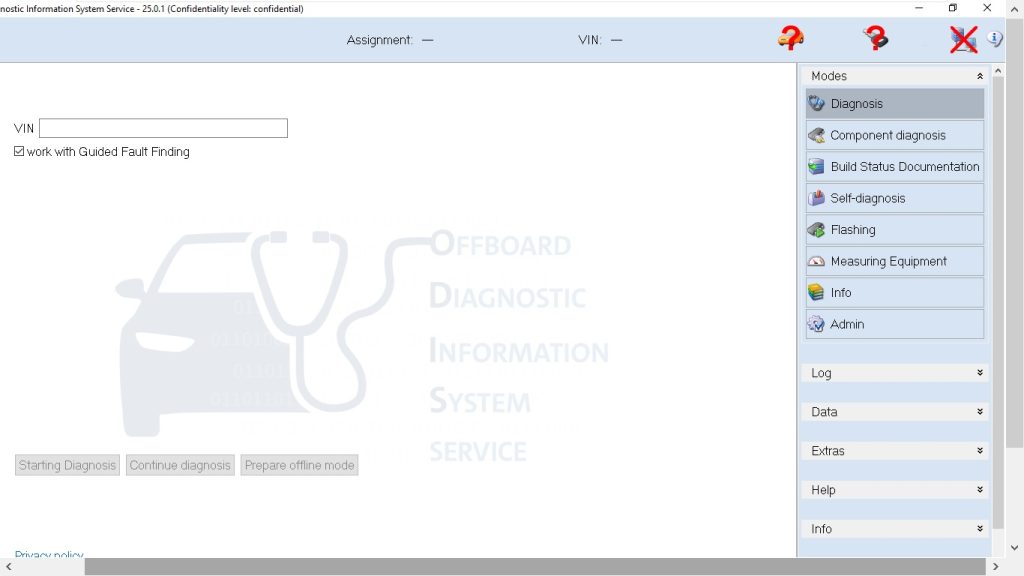
The ODIS Service 25 + Engineering 19 VMware image is the most practical way إلى run the full VAG dealer حزمة التشخيص على modern Windows PC بدون complex licensing setup. Here is the كامل التركيب guide.
الخطوة 1: Install VMware Workstation Player
Download و install VMware Workstation Player 17 (free) من VMware.com. Accept defaults و restart your PC if prompted. VMware Player مطلوب إلى open the ODIS VM image.
الخطوة 2: Enable Virtualization in BIOS
- Restart و enter BIOS (Del, F2, or F10)
- Enable Intel VT-x (Intel CPUs) or AMD-V / SVM (AMD CPUs)
- Save و exit BIOS
الخطوة 3: Open the ODIS VMware Image
- Extract the ODIS VMware archive إلى a location مع at least 100GB free space (SSD preferred)
- Open VMware Player → Open a Virtual Machine → select the .vmx file
- Before starting, adjust VM settings: set RAM إلى 6144MB (6GB) و CPU cores إلى 2 or 4
- Click Play — the VM boots في Windows مع ODIS Service pre-installed
الخطوة 4: Connect Your VAS Interface
- Plug VAS 5054A (USB) or VAS 6154 في a USB port on your host PC
- In VMware: Player → Removable Devices → find your VAS interface → Connect (Disconnect من host)
- Windows inside the VM installs the driver automatically
- Open ODIS Service من the desktop و select your VAS interface in communication settings
الخطوة 5: Connect إلى Vehicle و Start Diagnosing
- Connect VAS 5054A/6154 إلى the المركبات OBD2 port
- Turn المركبات ignition ON
- In ODIS, create a new order → enter VIN or let ODIS read it automatically
- Select Self-Diagnosis إلى scan all modules, or open a specific الأنظمة directly
Common VMware Issues With ODIS
- ODIS loads very slowly: Move VM إلى SSD, allocate more RAM
- VAS not detected in VM: Use Player → Removable Devices إلى pass USB إلى VM
- GFF procedures fail midway: Ensure المركبات battery is fully charged — ODIS GFF can trigger multiple actuators
- VM crashes أثناء flashing: Disable USB power management on host PC, use a powered USB hub
Get ODIS Service 25 + Engineering 19 VMware pre-configured →