
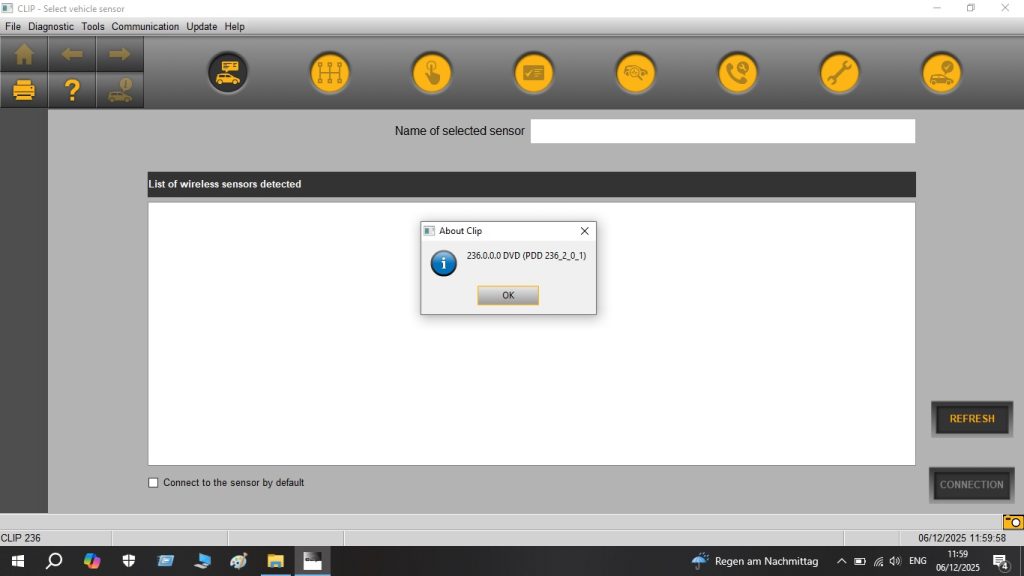
تركيب Renault CAN Clip V236 على modern Windows PC يتطلب some preparation due إلى the software’s الأصلي Windows XP/7 design. Here are the most reliable approaches.
Option 1: Dedicated Windows 7 Laptop (Most Reliable)
The most stable solution لـ regular ورش العمل use is a dedicated older laptop running Windows 7 (32-bit). CAN Clip installs و runs natively بدون any compatibility issues. The CAN Clip interface drivers install cleanly, و all functions including UCH البرمجة work correctly.
- Install Windows 7 32-bit على dedicated laptop
- Install the CAN Clip software و drivers
- Connect the CAN Clip USB dongle و install its driver
- Launch CAN Clip — fully functional مع no workarounds
Option 2: Windows 10 مع التوافق Mode
- Right-click the CAN Clip installer → Properties → التوافق
- Set compatibility mode إلى “Windows 7”
- Run the installer as Administrator
- For the CAN Clip USB driver: right-click the driver setup → Properties → التوافق → Windows 7
- Disable driver signature enforcement: in Windows 10 Advanced Boot Options, select “Disable driver signature enforcement” قبل running the driver installer
- After التركيب, always run CAN Clip as Administrator
This method works لـ most CAN Clip functions on Windows 10. Some users report issues مع certain البرمجة functions — test thoroughly قبل use in production.
Option 3: Virtual Machine on Windows 10/11
- Install VMware Workstation Player (free)
- Create a Windows 7 virtual المعدات (or use a pre-configured VM)
- Install CAN Clip inside the VM
- Pass the CAN Clip USB dongle إلى the VM via Player → Removable Devices
- Run CAN Clip inside the VM مع full Windows 7 compatibility
CAN Clip Interface Driver Installation
- Before connecting the CAN Clip dongle, install the CAN Clip software first
- Plug in the CAN Clip USB dongle
- If Windows لا install the driver automatically, open Device Manager → find the unknown device → Update Driver → Browse → point إلى the CAN Clip driver folder
- The interface should appear as “CAN Clip Interface” in Device Manager عند properly installed