
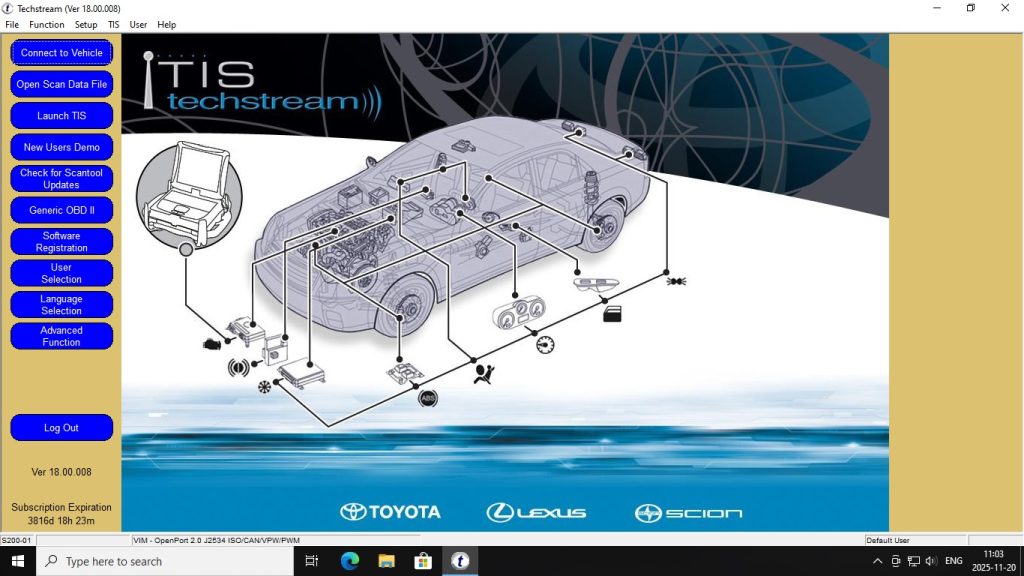
Toyota Techstream is the الرسمي OEM برنامج التشخيص لـ Toyota, Lexus, و Scion المركبات. It يوفر dealer-level access إلى every الأنظمة in the المركبات — المحركات, transmission, ABS, airbag, climate, body control, و more — including functions that no aftermarket scanner can replicate. يغطي هذا الدليل everything you need إلى install و run Toyota Techstream V18 on Windows 10 و Windows 11, including the VMware method لـ the fastest و most reliable setup.
What Can Toyota Techstream Do?
Toyota Techstream goes far beyond reading و clearing رموز الأعطال. With a compatible J2534 interface, it gives you access إلى:
- Full الأنظمة diagnostics — every ECU across Toyota, Lexus, و Scion platforms
- Active tests — command individual المكونات إلى verify operation (injectors, fans, solenoids)
- Customisation settings — enable or disable factory features like auto door lock, seatbelt reminder chime, daytime running lights
- ECU initialisation — required بعد replacing throttle bodies, steering angle sensors, و ABS actuators
- Key registration و immobilizer البرمجة — مع the correct security certificate
- Live data logging — record و export sensor data لـ analysis
Version 18 (specifically V18.00.008 or V18.008.00) is the current release و covers Toyota و Lexus models عبر 2024, including hybrid و plug-in hybrid platforms (Prius, RAV4 Prime, Lexus RX 500h).
For Ford و Lincoln المركبات, the closest equivalent is Ford IDS مع ETIS — providing the same factory-level depth لـ Ford platforms that Techstream delivers لـ Toyota, و similarly available as an offline VMware image.
System المتطلبات
- OS: Windows 10 64-bit (native) or Windows 10/11 via VMware
- RAM: 4 GB minimum, 8 GB recommended
- Storage: 15 GB free space
- Interface: Any J2534-compatible VCI — Xhorse MVCI, Mongoose, Openport 2.0, or compatible clones
- Connectivity: USB (most interfaces) or WiFi (Xhorse MVCI)
Installation Method 1 — VMware Image (Fastest)
The VMware pre-installed image is the quickest path إلى a working Techstream setup. The entire application, along مع its required database و interface drivers, is already configured inside a Windows 10 virtual المعدات. You skip the التركيب entirely و go straight إلى connecting your المركبات.
الخطوة 1 — Install VMware Workstation Player
Download VMware Workstation Player 17 (free) من VMware’s website و install it. During setup, يتيح VMware إلى install its network adapter المكونات — these are required لـ the bridged network mode that Techstream occasionally uses لـ licence verification. Enable Intel VT-x in your BIOS if the installer reports virtualisation ليس available.
الخطوة 2 — Extract و Open the VM
Extract the Techstream VM archive إلى a location مع a short path (C:TechstreamVM works well). Open VMware Workstation Player, click Open a Virtual Machine, و navigate إلى the .vmx file. VMware will import it و show the المعدات in your library.
الخطوة 3 — Adjust VM Resources
Before powering on, edit the VM settings: allocate at least 4096 MB RAM و 2 CPU cores. Set the network adapter إلى Bridged mode. Ensure USB 3.0 controller is enabled so your J2534 interface is recognised inside the VM.
الخطوة 4 — Power On و Connect Your Interface
Start the VM. Once Windows loads, plug in your J2534 interface. Go إلى VM → Removable Devices in VMware’s menu و connect the USB device إلى the virtual المعدات. Open Techstream — it should detect your interface automatically under Setup → VIM Select.
Installation Method 2 — Native Windows 10
إذا كنت prefer a direct install on your laptop, Techstream V18 installs cleanly on Windows 10 64-bit مع a few precautions.
Pre-Installation Steps
- Temporarily disable Windows Defender و any antivirus — Techstream’s licence files are frequently flagged
- Run the installer as Administrator — right-click
setup.exe→ Run as administrator - Install your J2534 interface drivers قبل running Techstream setup, not بعد
- Ensure your الأنظمة date is correct — Techstream performs a date check against its licence
Run Setup و Select Components
Launch the installer و select Full Install. This installs the Techstream application, the المركبات database, و the المعايرة files. Partial installs leave out the المعايرة database, which causes “المركبات not found” errors on certain models. Allow the installer إلى كامل fully قبل rebooting.
Configuring Your J2534 Interface
After التركيب, open Techstream و navigate إلى Setup → VIM Select. From the dropdown, select your interface. Common entries:
- Xhorse MVCI — select “Xhorse MVCI” من the list
- Mongoose / Openport 2.0 — select the appropriate DLL من the J2534 list
- Generic J2534 — select “SAE J2534” و point it إلى your interface’s installed DLL
Click OK و return إلى the main screen. Connect your interface إلى the المركبات’s OBD2 port (under the dash, driver’s side), turn the ignition إلى ON (المحركات off), و click Connect إلى Vehicle. Techstream will identify the VIN و populate the الأنظمة list automatically.
Common Issues و Fixes
“VIM Not Found” Error
This means Techstream cannot see your interface. Confirm your interface drivers are installed (check Device Manager — no yellow warning flags). In the VMware method, confirm the USB device is passed عبر إلى the VM via the Removable Devices menu.
Techstream Crashes on Vehicle Connect
Usually caused by a date/time mismatch or a corrupted database file. Verify your الأنظمة clock is accurate. If the crash persists, reinstall the المعايرة database المكونات only — no need إلى reinstall the full application.
Cannot Access Certain Systems (Hybrid Battery, Smart Key)
Some Lexus و hybrid-specific الأنظمة يتطلب an additional Techstream Subscription token لـ security access. This is a factory restriction applied إلى immobilizer و high-voltage الأنظمة functions.
Get Toyota Techstream V18 — VMware Ready
Our Techstream V18 VMware image is pre-installed, pre-configured, و tested. Connect your J2534 interface, open the VM, و you are تشخيص Toyota و Lexus المركبات immediately.