
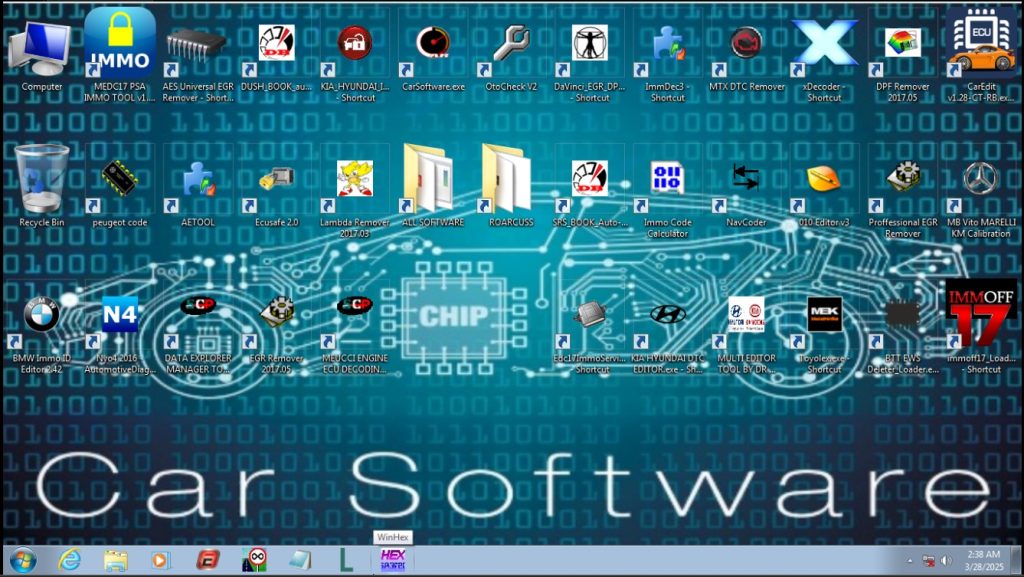

إذا كنت have looked at automotive برنامج التشخيص recently, you have almost certainly seen the term “VMware” attached إلى product listings. Pre-installed VMware images are now the standard delivery format لـ most serious diagnostic platforms — Volvo TechTool, Ford IDS, ODIS, Toyota Techstream, و many others are all available this way. But if you have never used virtualisation software قبل, the concept can seem confusing. What exactly is VMware? Why do أدوات التشخيص run inside it? And is it harder إلى set up than just installing software directly? This guide answers all of those questions.
What Is VMware?
VMware is a virtualisation platform. It يتيح you إلى run a كامل, separate computer — مع its own operating الأنظمة, applications, و files — inside a window on your existing laptop or desktop. This separate computer is called a virtual المعدات (VM).
From the virtual المعدات’s perspective, it is a real computer. It has its own CPU allocation, its own RAM, its own storage, و its own USB ports. Applications running inside it behave exactly as if they were running on dedicated hardware. From the outside, it is just a window on your screen — you can minimise it, pause it, copy it, و back it up like any other file.
The free version — VMware Workstation Player — is all that most users need. It is available directly من VMware و costs nothing.
Why Do Diagnostic Tools Run Inside VMware?
This is the key question, و the answer comes down إلى two factors: compatibility و isolation.
التوافق
Most احترافي automotive برنامج التشخيص was built لـ older Windows versions — Windows 7, Windows XP, or specific Windows 10 builds. These applications depend on old versions of Microsoft Visual C++ runtimes, .NET Framework, DirectX libraries, و database المحركات (like PostgreSQL 9.6 or older SQL Server versions) that either لا exist in Windows 11, behave differently, or actively conflict مع المكونات that Windows 11 installs by default.
تركيب Volvo TechTool على clean Windows 11 laptop, لـ example, يتطلب manually installing an older PostgreSQL version, configuring the database service, matching specific Visual C++ 2008/2012 runtimes, و adjusting Windows permissions. One wrong step و the database fails إلى start, leaving TechTool unable إلى launch. This is a genuinely difficult التركيب لـ anyone who ليس a Windows الأنظمة administrator.
Inside a VMware image, all of this is already done. The virtual المعدات runs the exact operating الأنظمة version the software was designed لـ, مع every dependency pre-installed و configured. You never touch any of it.
Isolation
A VMware image keeps the برنامج التشخيص completely separated من your regular working environment. This matters لـ several reasons:
- No conflicts مع other software — antivirus, Windows Update, و other applications on your main الأنظمة cannot interfere مع the diagnostic application inside the VM
- No contamination in the other direction — any instability in the برنامج التشخيص stays inside the VM و cannot affect your main الأنظمة
- Snapshots — VMware can take a snapshot of the VM at any point. If something goes wrong, you restore the snapshot و you are back إلى a known-good state in seconds. No reinstalling.
- Portability — the entire VM is a folder of files. Copy it إلى a USB drive, send it إلى another المعدات, run it there. Your configured diagnostic environment goes مع you.
How Does a USB Diagnostic Interface Work Through VMware?
This is the question most people have عند they first encounter diagnostic VMs. Your VCI (Vehicle Communication Interface) plugs في your laptop’s physical USB port. But the برنامج التشخيص is running inside a virtual المعدات. How does the software see the interface?
VMware handles this عبر USB passthrough. عندما plug in your VCI, VMware intercepts the USB connection و offers إلى redirect it في the virtual المعدات. You click VM → Removable Devices → [Your Device] → Connect, و the USB device is handed off إلى the VM entirely. Inside the VM, it appears exactly like a locally connected USB device — the برنامج التشخيص detects it, communicates مع it, و sends/receives المركبات data عبر it, all بدون any difference in behaviour.
This works لـ virtually all diagnostic interfaces: Volvo VCI (TechTool), Ford VCM II (Ford IDS), Scania VCI3 (SDP3), Lexia 3 (Diagbox), J2534 adapters (Techstream, ODIS), و RP1210 adapters لـ heavy-duty trucks.
Is VMware Difficult إلى Set Up?
Running a pre-installed VMware image is genuinely straightforward. The steps are:
- Install VMware Workstation Player (free, available من VMware’s website, 5-minute install)
- Extract the diagnostic VM archive إلى a folder on your computer
- Open the
.vmxfile in VMware — the VM appears in your library - Set RAM و CPU allocation (a one-time step taking حول 2 minutes)
- Power on the VM — Windows boots, software is ready
- Plug in your VCI و pass it عبر إلى the VM
Total time من download إلى working diagnostic session: typically 20–30 minutes, mostly occupied by file extraction و the first Windows boot. Compare this إلى a native التركيب of something like Volvo TechTool, which can take 2–4 hours و still fail due إلى a database التهيئة step.
What Are the Resource المتطلبات?
VMware adds a small overhead compared إلى running software natively, but modern laptops handle it easily:
- RAM: Your host المعدات needs enough RAM لـ both Windows و the VM. 16 GB is comfortable. 8 GB is workable if you close other applications while the VM is running.
- Storage: VM images are large — typically 40–80 GB each. Use a fast SSD if possible; the VM will load faster و respond more quickly.
- CPU: Any modern Intel Core i5 or AMD Ryzen 5 handles diagnostic VMs بدون issue. Enable Intel VT-x (Intel) or AMD-V (AMD) in your BIOS — this is usually off by default و enables hardware-accelerated virtualisation.
كيفية Enable VT-x in BIOS
If VMware reports that virtualisation ليس available, you need إلى enable it in your BIOS. The process varies by laptop manufacturer, but the steps are generally: restart your laptop, press F2, F10, Delete, or Escape أثناء the manufacturer logo screen إلى enter BIOS, navigate إلى the CPU or Advanced settings section, find Intel Virtualization Technology or VT-x (Intel) / SVM Mode (AMD), set it إلى Enabled, save و exit. The laptop will restart و VMware will detect the feature on next launch.
Shop Our Pre-Installed Diagnostic VM Images
All of our VMware diagnostic images are pre-installed, pre-configured, و tested. Download, open in VMware Workstation Player, و start تشخيص المركبات — no setup experience required.
Available pre-installed images يتضمن: ODIS Service 25 + Engineering 19 لـ VAG Group المركبات, Volvo TechTool PTT 2.8.241 لـ Volvo/Mack/Renault trucks, Toyota Techstream V18 لـ Toyota و Lexus, Ford IDS ETIS لـ Ford و Lincoln, و Diagbox 9.129 لـ Peugeot, Citroën, و DS المركبات.