
This step-by-step guide covers the كامل التركيب of Volvo Tech Tool (PTT) 2.8.21 مع VOCOM interface on Windows 10 x64. The process يتضمن the main installer, post-install file replacements, APCI database extraction, و License Editor setup لـ offline/standalone use — no license dongle required.
💻 المتطلبات: Windows 10 x64, Admin rights, Internet connection, 10GB+ free disk space
✅ Result: Volvo Tech Tool 2.8.21 working offline — no dongle needed
What Is Volvo Tech Tool (PTT)?
Volvo Premium Tech Tool (PTT), also known as Tech Tool, is the الرسمي OEM برنامج التشخيص لـ Volvo Trucks, Volvo Buses, Mack Trucks, و Renault Trucks. It يوفر full dealer-level access إلى all المركبات ECUs لـ diagnostics, المعلمات البرمجة, guided تحديد الأعطال, و software updates.
Version 2.8.21 is a stable release مع APCI+ 0.5.1.0 يدعم, covering all Volvo truck generations من older electrical الأنظمة عبر VERSION4 (FH4/FM4 Euro 6).
Installation Files — 5 Folders
The التركيب package contains 5 numbered folders that يجب أن يكون run in order:
- 1. Installer Assistant — Main installer wizard مع Client ID login
- 2. Replace — Overwrite critical DLL و UI files بعد main install
- 3. APCI 2021.09 — Self-extracts ~2.24 GB APCI database إلى C:ProgramData
- 4. License Editor — Create offline license database (no dongle)
- 5. Developer Tool — Optional Developer Tool Pro (25,000+ المعلمات)
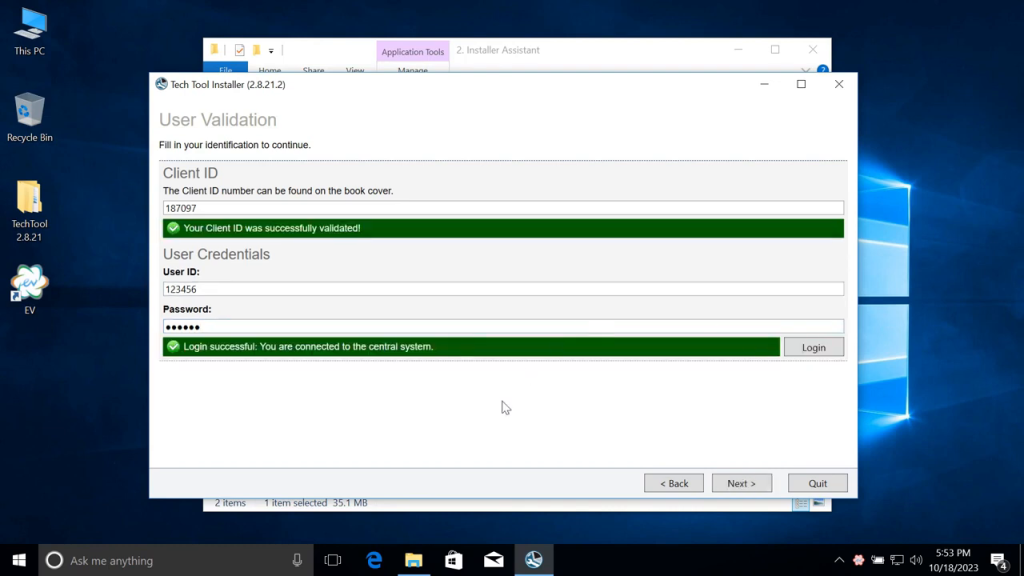
الخطوة 1 — User Validation
Launch 1. Installer Assistant as Administrator. The first screen asks لـ your Client ID و login credentials. Enter your Volvo account details. إذا كنت are installing in offline/standalone mode, a valid Client ID is still required لـ the initial connection — the software validates online once أثناء setup.
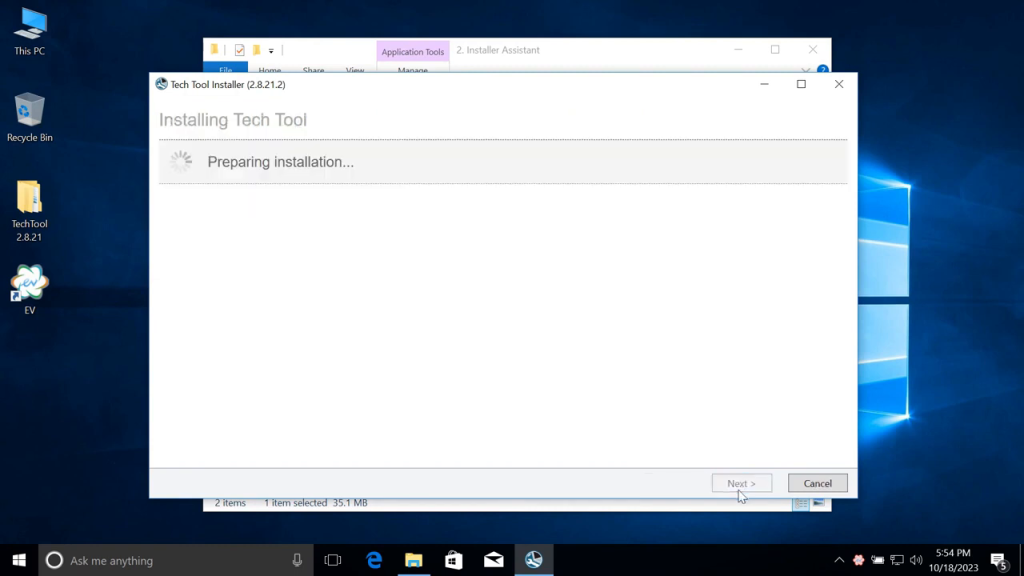
الخطوة 2 — Preparing Installation
After validation, the installer enters Preparing Installation mode. Select Automatic لـ the Client Update mode — this يتيح the installer إلى manage all package downloads automatically بدون manual intervention.
الخطوة 3 — Downloading 63 Packages
The installer downloads و installs 63 packages in sequence. This is the longest phase و typically takes 1-3 hours depending on connection speed. Key packages يتضمن:
- VC_redist (~14 MB) — Visual C++ runtime
- SQL Compact Edition 3.5 x64 SP2
- Tech Tool Core Normal Content (~1.5 GB)
- Tech Tool Core Developer Content
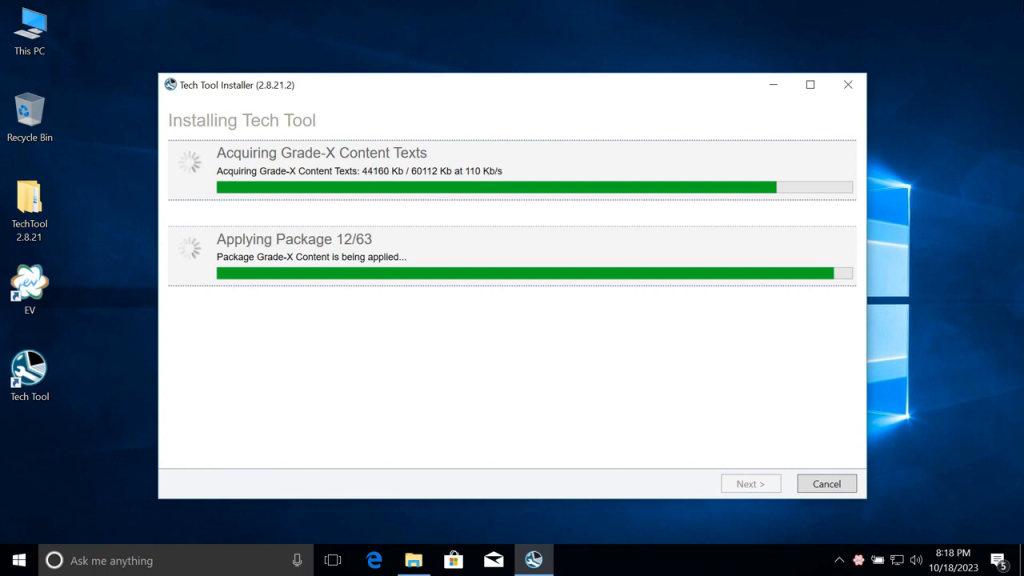
- Grade-X Content + Texts (~59 MB)
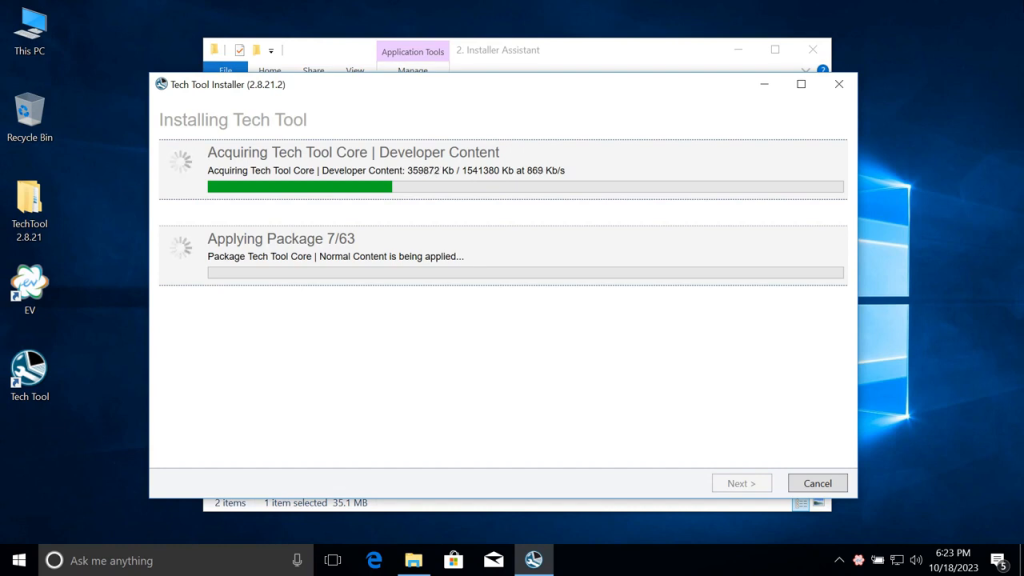
Do not interrupt this process. If the download stops, restart the installer — it will resume من where it left off.
الخطوة 4 — Grade-X Content
After the main packages, the installer downloads Grade-X Content (~60 MB). This contains additional guided diagnostic content لـ specific المركبات الأنظمة. The التركيب continues automatically.
الخطوة 5 — Installation Finished + Error 200
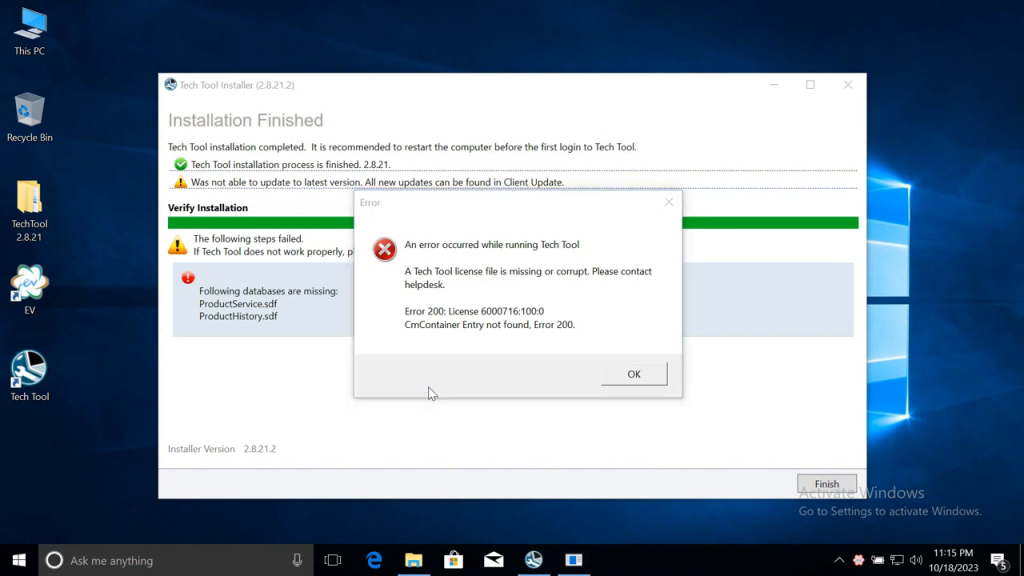
When the installer completes, you will see an “Installation Finished” message — but also an Error 200: CmContainer Entry not found dialog. This is expected و normal. Do not panic — this error means the license database has not been created yet. It is resolved in الخطوة 7 (License Editor).
الخطوة 6 — Post-Install File Replacement
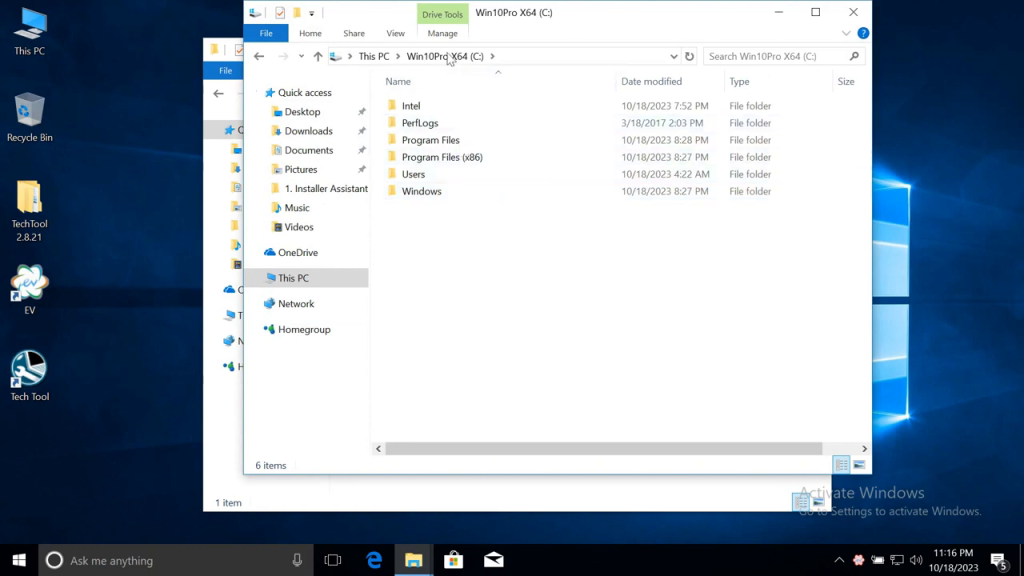
Open folder 2. Replace و copy the files في:
C:Program Files (x86)Tech ToolTech Tool
Replace عند prompted. These files overwrite ProductHistoryUi و SharedDlls — critical لـ the software إلى function correctly. Then extract 3. APCI 2021.09 إلى:
C:ProgramDataTech ToolWaf
This extracts the full APCI database (~2.24 GB) required لـ المعلمات access و guided diagnostics.
الخطوة 7 — License Editor (Most مهم الخطوة)
This step creates the offline license that يتيح Tech Tool إلى run بدون a dongle or Volvo server connection.
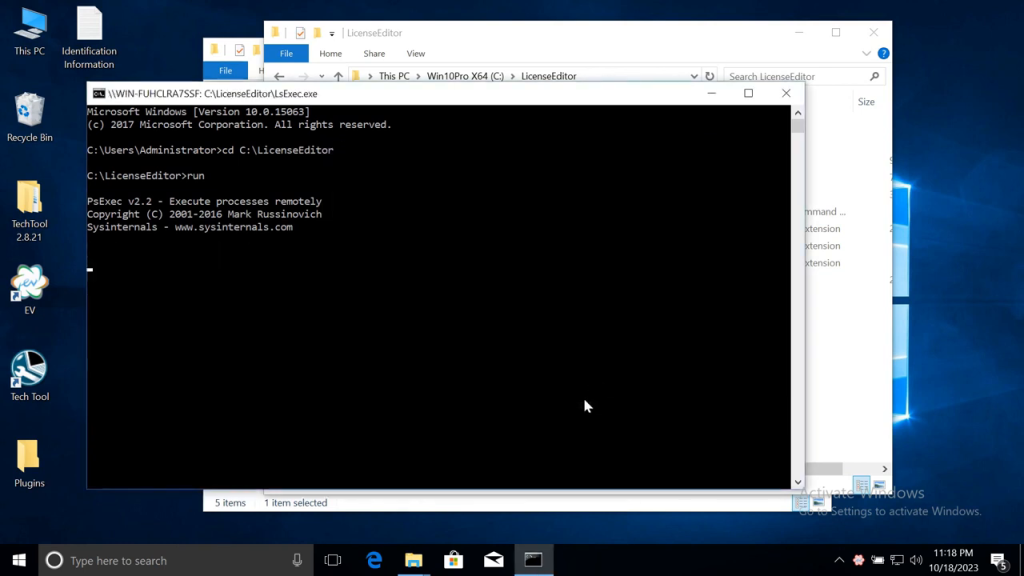
- Open Command Prompt as Administrator
- Navigate إلى:
cd C:LicenseEditor - Run the License Editor executable
- Fill in the fields:
- The tool auto-fills: MAC address, Client ID, BIOS Serial, Volume ID
- Enter your name و company
- Set Business Area: VTC (لـ trucks) or OEM
- Set User Type: Developer (لـ full المعلمات access)
- Check “No connection إلى central” — this enables offline/standalone mode
- Click “Create DB مع new key”
الخطوة 8 — Developer Tool (Optional)
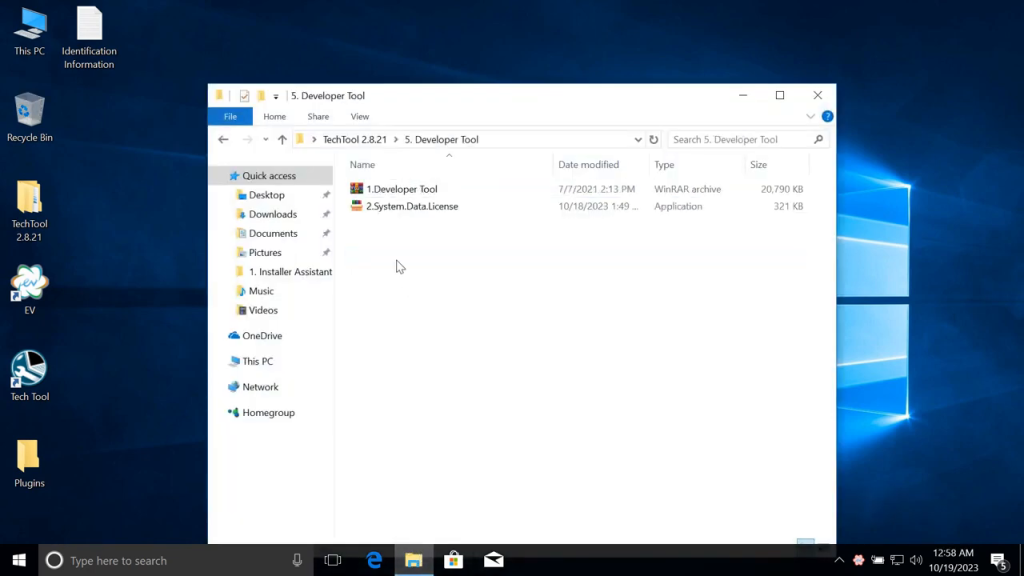
Run 5. Developer Tool إلى install Developer Tool Pro. This gives access إلى over 25,264 المعلمات لـ V3/V4 المركبات و 15,374 المعلمات لـ V2, across 30+ languages. It مطلوب لـ advanced المعلمات البرمجة مثل speed limit changes, injector البرمجة, و immobilizer work.
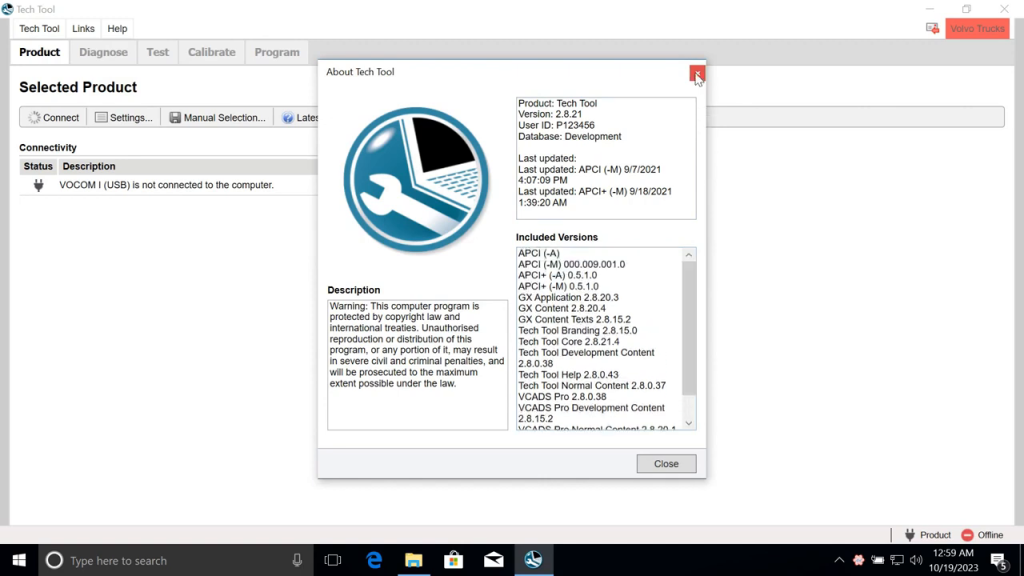
الخطوة 9 — Tech Tool Working
Launch Tech Tool. If the التركيب was successful, you will see the main Tech Tool interface مع all المكونات showing correct version numbers:
| Component | Version |
|---|---|
| Tech Tool Core | 2.8.21.4 |
| GX Application | 2.8.20.3 |
| APCI+ | 0.5.1.0 |
| VCADS Pro | 2.8.20.1 |
| Developer Content | 2.8.0.38 |
Common Issues و Fixes
Error 200 — CmContainer Entry not found
Cause: License database not created yet.
Fix: Run License Editor → Create DB مع new key (الخطوة 7 above).
Missing databases: ProductService.sdf / ProductHistory.sdf
Cause: APCI extraction not completed.
Fix: Run folder 3. APCI 2021.09 و extract إلى C:ProgramDataTech ToolWaf
Was not able إلى update إلى latest version
Cause: No Volvo server connection.
Fix: Normal in offline mode. Use Client Update inside the app عند connected.