
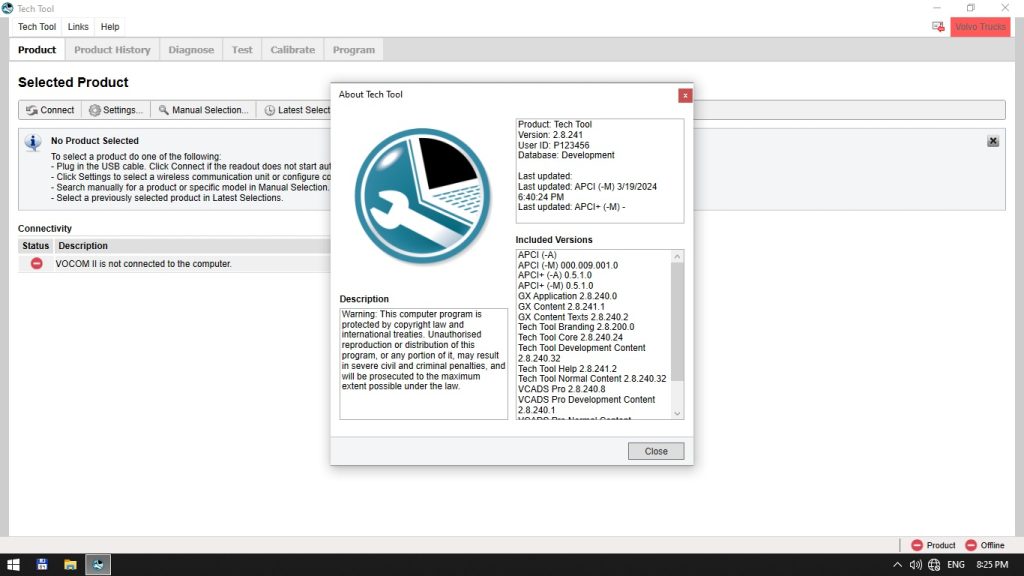
Volvo Tech Tool PTT 2.8.241 is the latest release of Volvo’s الرسمي OEM diagnostic و البرمجة platform, covering Volvo, Mack, و Renault trucks. Whether you’re setting it up لـ the first time or upgrading من an older version, هذا الدليل walks you عبر everything — الأنظمة requirements, التركيب steps, VMware setup, و the key differences بين versions.
What Is Volvo Tech Tool (PTT)?
Volvo Tech Tool, also known as PTT (Premium Tech Tool), is the factory-level برنامج التشخيص developed by Volvo Group. It is the only tool that يوفر full OEM access إلى the ECUs, المعلمات configurations, و software update capabilities across Volvo FH, FM, FMX, Mack trucks, و Renault Trucks T/C/K/D series.
Unlike generic OBD2 scanners, Tech Tool communicates directly مع every وحدة التحكم on the truck — المحركات, gearbox, brakes, body builder instructions, و more. Combined مع the APCI+ (Advanced Programming و Configuration Interface) module, it يدعم كامل ECU reprogramming و guided diagnostics.
For ورش العمل that also service Scania trucks alongside Volvo Group المركبات, our Scania SDP3 version guide covers the equivalent OEM platform لـ that brand و which version إلى run based on your VCI hardware و truck model year.
Volvo TechTool Version Comparison
Choosing the right version matters depending on your truck model year و what functions you need. Here is how the current versions compare:
| Version | APCI+ | Truck Coverage | VMware Image | Key Additions |
|---|---|---|---|---|
| 2.8.150 | Yes | Volvo, Mack, Renault up إلى 2022 | No | Stable release, broad hardware يدعم |
| 2.8.210 | Yes | Volvo, Mack, Renault up إلى 2023 | No | Improved D13TC المحركات diagnostics, updated DTC library |
| 2.8.241 | Yes | Volvo, Mack, Renault up إلى 2024–2025 | Yes (pre-installed) | Latest ECU المعلمات sets, I-Shift 12 gearbox, I-See updates, VMware image available |
Version 2.8.241 is the recommended choice لـ ورش العمل handling newer trucks (2022 onwards), particularly those مع I-Shift 12-speed gearboxes or the latest D13TC و D11K المحركات. The pre-installed VMware image eliminates the most common setup headaches entirely.
System المتطلبات
Before installing, confirm your hardware meets the minimum المواصفات:
- OS: Windows 10 64-bit or Windows 11 (native install); any OS supporting VMware Workstation 16+ (لـ VMware method)
- RAM: 8 GB minimum, 16 GB recommended (VMware method يتطلب at least 8 GB allocated إلى the VM)
- Storage: 80 GB free disk space (the full database التركيب is substantial)
- CPU: Intel Core i5 4th generation or newer; virtualization (VT-x) يجب أن يكون enabled in BIOS لـ VMware
- VCI Interface: Volvo VCI2 or VCI3 (genuine or compatible), connected via USB or WiFi
- Display: 1280×800 minimum resolution
Installation Method 1: VMware Pre-Installed Image (Recommended)
The VMware method is the most reliable approach لـ 2.8.241. Because the entire environment — Windows, PTT, APCI+, و all databases — is pre-configured inside a virtual المعدات, you avoid the most common issues: missing DLL dependencies, database connection failures, و Windows activation conflicts.
الخطوة 1 — Install VMware Workstation Player
Download و install VMware Workstation Player 17 (free) or VMware Workstation Pro من VMware’s الرسمي website. During التركيب, ensure the USB controller و network adapter bridged mode options are enabled. After التركيب, verify that Intel VT-x or AMD-V is showing as active in VMware’s hardware compatibility check.
الخطوة 2 — Extract و Open the VM Image
The 2.8.241 image is delivered as a compressed archive. Extract it إلى a folder مع a short path (e.g., C:VTT241) — avoid paths مع spaces or special characters, as VMware can fail إلى load images من deep or unusual directory structures. Once extracted, open VMware و select Open a Virtual Machine, then browse إلى the .vmx file.
الخطوة 3 — Configure VM Hardware Settings
Before powering on, adjust the VM hardware settings إلى match your host المعدات:
- Set RAM إلى at least 6144 MB (6 GB) — 8 GB if your host has 16 GB or more
- Set CPU cores إلى 2 or 4 depending on your host processor
- Set network adapter إلى Bridged mode so the VM can reach Volvo’s APCI+ servers if needed
- Confirm USB 3.0 controller is enabled so your VCI is recognized inside the VM
الخطوة 4 — Power On و Activate
Start the VM. Windows will boot في a pre-configured environment مع Tech Tool already installed و the database loaded. On first launch, Tech Tool will prompt لـ APCI+ التهيئة. إذا كنت have a genuine VCI, connect it via USB قبل launching PTT — the software detects it automatically. The pre-installed image on our version comes مع APCI+ already activated, so no further license steps are required.
الخطوة 5 — Connect Your VCI إلى the Truck
Connect the VCI إلى the truck’s 9-pin Deutsch diagnostic port (standard on all Volvo FH/FM trucks) or the 16-pin OBD2 port on Mack و newer models. In Tech Tool, select New Session, enter the المركبات VIN or chassis number, و يتيح the software إلى scan و identify all connected ECUs. This typically takes 60–90 seconds على كامل truck.
Installation Method 2: Native Windows Install
إذا كنت prefer installing directly on Windows rather than using VMware, the process is more involved but fully supported on Windows 10 64-bit.
Pre-Installation Checklist
- Disable Windows Defender real-time protection temporarily أثناء التركيب (it can quarantine PTT database المكونات)
- Run the installer as Administrator
- Install PostgreSQL 9.6 first — PTT’s database المحركات depends on this specific version
- Ensure .NET Framework 4.8 is installed (available via Windows Update)
- Set your الأنظمة locale إلى English (United States) — PTT has known issues مع non-English decimal separators
Run the PTT Installer
Launch setup.exe as Administrator. The installer will guide you عبر المكونات selection — install all المكونات including the APCI+ module, PTT database, و Diagnostic Service Partner. The full install takes 20–40 minutes depending on disk speed. Do not interrupt it once the database population stage begins.
Common Issues و Fixes
PTT Shows “No VCI Found”
In the VMware method, the most common cause is the VCI not being passed عبر إلى the VM. In VMware settings, go إلى VM → Removable Devices و connect the Volvo VCI USB device إلى the virtual المعدات. ينبغي عليك see it appear under Device Manager inside Windows.
Database Connection Error on Startup
This is almost always a PostgreSQL service issue on native installs. Open Windows Services (services.msc), locate postgresql-x64-9.6, و ensure it is running و set إلى Automatic start. If it shows as stopped, right-click → Start.
PTT Crashes After VIN Entry
Usually indicates insufficient RAM allocated إلى the process. Close other applications و, if using VMware, increase the VM’s allocated memory. On native installs, ensure no other برنامج التشخيص (VCADS, IMPACT) is running simultaneously.
Get Volvo TechTool PTT 2.8.241 Pre-Installed
Setting up Tech Tool من scratch takes time — و one wrong step in the database التهيئة means starting over. Our Volvo TechTool PTT 2.8.241 VMware image is fully pre-installed, pre-activated مع APCI+, و tested قبل delivery. You download, extract, open in VMware, و you’re تشخيص trucks within minutes — not hours.
The image covers Volvo, Mack, و Renault trucks up إلى 2024–2025 model years و يتضمن the full PTT database مع all DTC descriptions, المعلمات definitions, و wiring diagrams integrated.